Private networking allows you to group servers within the same location, enabling private communication between them
Latitude.sh servers are configured with a public and a private interface on a Layer 3 network topology by default. With private networking, you can switch to a Layer 2 topology, allowing for L2 traffic between two or more instances.This applies to both bare-metal servers and the virtual machines running on them: a VM can attach to the same private network and reach the bare-metal hosts — and other VMs — over Layer 2, using the same VLAN and subnet.Layer 2 packets don’t go through the network layer, and traffic is not filtered in any way. Latitude.sh does not charge for traffic from private networks, either inbound or outbound.
Private networking provides a myriad of benefits, with the most important ones being:
Traffic doesn’t go through the public internet, enhancing security.
Private network traffic doesn’t count against your bandwidth quota.
This feature is especially useful when you don’t want or need traffic from specific servers going through the public internet. Common use cases include:
Connecting a database server to a web application privately.
Managing internal services like DHCP.
Setting up Kubernetes clusters with direct node communication.
Letting virtual machines communicate privately with the bare-metal hosts they run on.
The first step is to create a Virtual Network — commonly referred to as VLAN.
From the dashboard
Using the API
1
Create a VLAN
Log in to the dashboard, select a
project, navigate to Networking → Private networks in the sidebar menu,
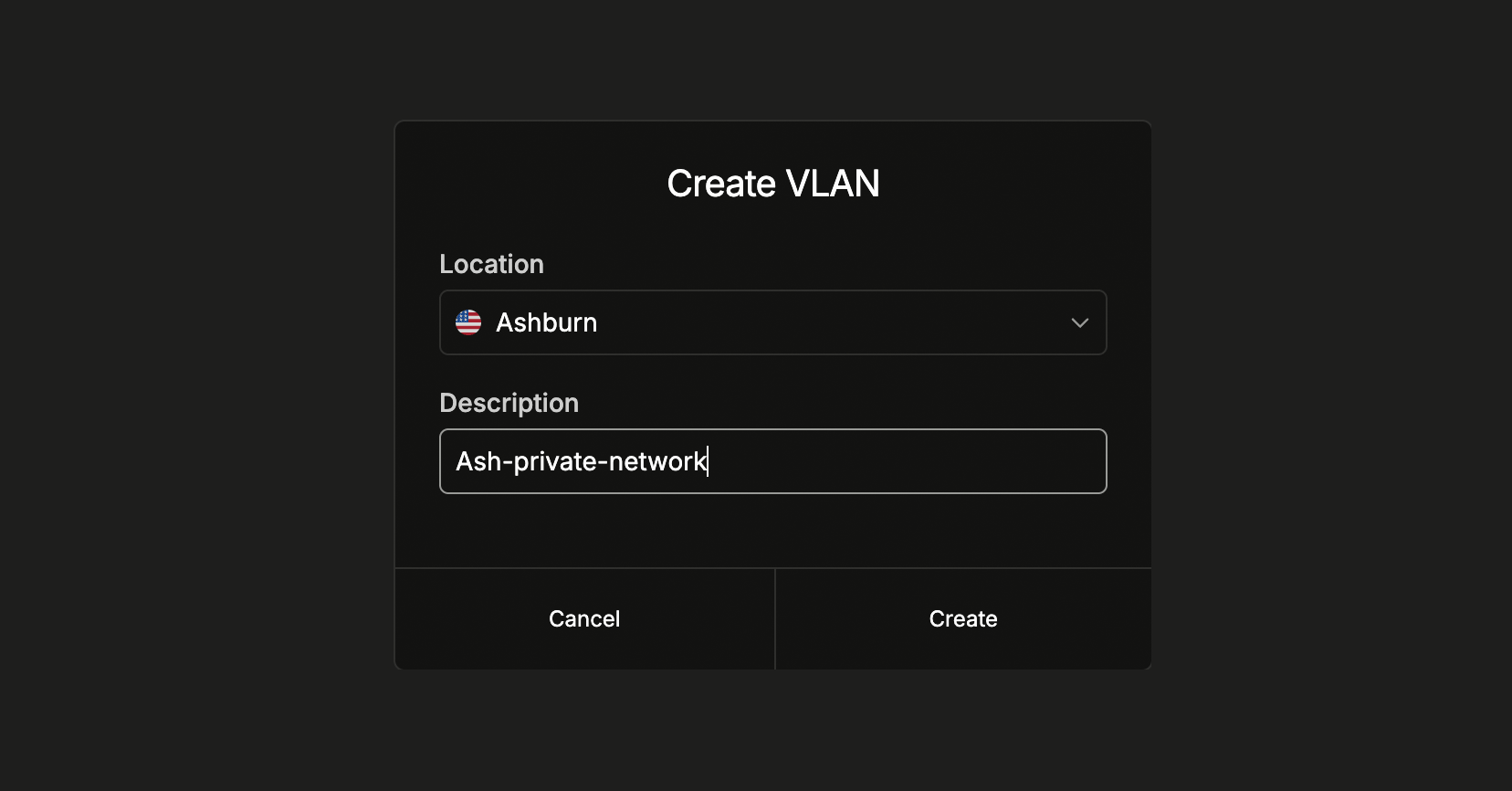
and click Create VLAN. Select the location and add a description to help
you identify what the VLAN is used for.
After creating the VLAN, assign at least two servers to allow the server’s private IPs to communicate.
1
Assign servers to the VLAN
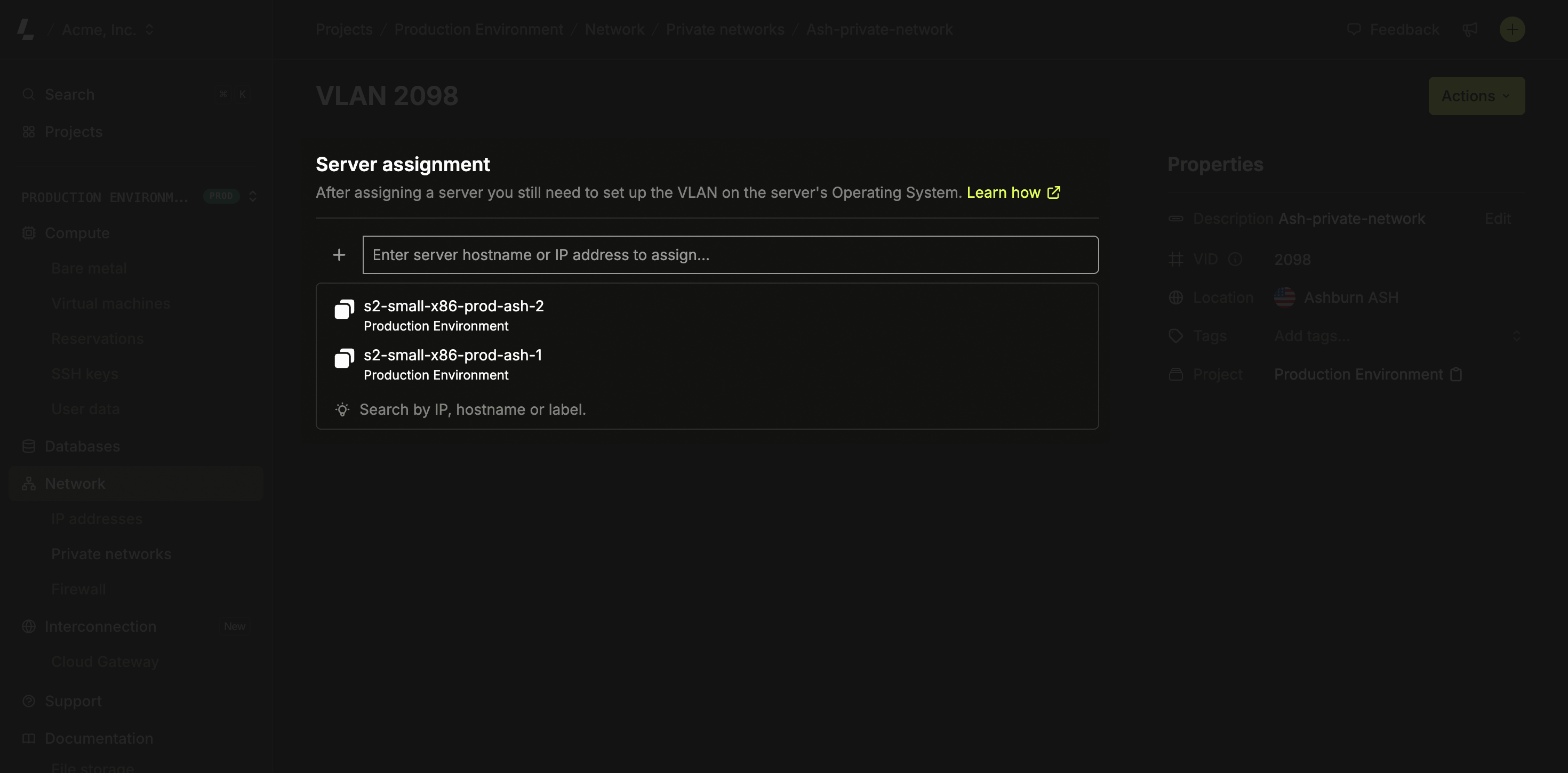
Go to the Virtual Network you created and click Assign. Select the
server you’d like to assign - only servers from the facility the virtual
network was created in will be listed. Save and wait a few seconds while the
network is provisioned.
You assign servers to the VLAN here. Virtual machines join the same private network through the host they run on — attach a NIC to the VLAN on the host’s private interface, then configure the guest as shown in Step 3 → Virtual machines.
The network provisioning on Latitude.sh switches is handled automatically after you assign your first server to a VLAN. Latitude.sh has no access to your servers, an additional step is required, and you need to configure the VLAN on your Operating System.
Ubuntu
Virtual machines
Windows
CentOS and RedHat Enterprise Linux
1
Load the 8021q module into the kernel and install the VLAN package
sudo modprobe 8021qsudo apt install vlan
2
Change netplan
Change the Netplan configuration file in /etc/netplan/50-cloud-init.yaml and add the configuration below to the end of the file.
Replace {{VID}} with the VID value from the VLAN you created.
Replace 10.8.0.1 with a private address of your choice. This address becomes the private IP of the server within the VLAN. It can be anything you want, but each server in the same VLAN needs a different IP.
Replace eno2 with the correct interface name. For servers with bonded interfaces, use bond0.
  vlans:
    vlan.{{VID}}:
      id: {{ VID }}
      link: eno2
      addresses: [10.8.0.1/24]
The vlans section should be at the same indentation level as the ethernets key.
3
Adding a default route
Due to eventual changes in Netplan versions, to use Cloud Gateway, you need to define a default route to ensure proper network routing.
You can do that by adding the following routes section under the vlans key:
routes:
  - to: 10.8.0.0/16
    via: 192.168.0.1
Replace 10.8.0.0/16 with the network prefix you want to reach through eno2.
Replace 192.168.0.1 with the gateway IP address for your network (typically the first IP of your subnet).
4
Save the file and apply the configuration
sudo netplan apply
This configuration is persistent, you don’t need to do anything else.
When the server runs virtual machines, the host’s virtual bridge applies the VLAN tag for the guest. Do not tag the VLAN again inside the guest — a vlans: block in the VM double-tags the frames (QinQ), the switch drops them, ARP never resolves, and you’ll see Destination Host Unreachable.
Never copy the Ubuntu tag-in-guest pattern (the vlans: block) into a VM. On bare metal the guest tags the VLAN; on a VM the host bridge already does. Inside the guest, the private NIC must be a plain, untagged interface.
1
Attach a second NIC to the VM
Latitude.sh virtual machines: attach the VLAN with POST /virtual_machines/{virtual_machine_id}/network_attachments, optionally with a static address. A running VM restarts so the new NIC reaches the guest. After the restart, GET /virtual_machines/{virtual_machine_id}/network_attachments returns the NIC’s mac_address and the address you set.
VMs whose apply_network_on_boot is true configure the NIC on boot when the attachment has an address. Nothing else to do.
In every other case (VMs created before that option existed, VMs with it set to false, or an attachment without an address), configure the NIC as described in the next steps.
Your own virtualization host: attach a second network interface to the VM, connected to a VLAN-backed network whose VLAN ID matches the VLAN you created on Latitude.sh. That network’s uplink must be the server’s private NIC (eno2).
The VLAN ID must match the bare-metal VLAN’s VID.
This is configured on the virtualization host, not in the guest OS.
2
Configure the guest NIC
Configure the private NIC as a plain, untagged interface in a configuration of your own, matched by its MAC address: interface names differ between images (enp2s0, eth1). Do not add a vlans: block.Ubuntu and Debian (netplan): put the private NIC in its own file, /etc/netplan/60-private.yaml, instead of editing /etc/netplan/50-cloud-init.yaml. Cloud-init can rewrite 50-cloud-init.yaml; with your configuration in a separate file, it keeps working through any cloud-init rewrite.
Replace 02:f2:41:f6:6a:5e with the second NIC’s MAC address (run ip -br link inside the guest to find it).
Replace eth1 with the ID that 50-cloud-init.yaml uses for the same MAC address, so your file overrides that entry. If 50-cloud-init.yaml has no entry for this NIC, any ID works.
Replace 10.8.0.2/24 with a private address in the same subnet and prefix as the bare-metal servers on this VLAN. Each host in the VLAN needs a unique IP.
Do not set a gateway on this interface: keep the default route on the public NIC (enp1s0) only.
AlmaLinux and Rocky Linux (NetworkManager): add a connection of your own, bound to the NIC’s MAC address:
Replace 02:f2:41:f6:6a:5e and 10.8.0.2/24 as described for netplan above.
ipv4.never-default yes keeps the default route on the public NIC.
Until a connection of yours matches the NIC, NetworkManager may hold it with its automatic Wired connection 1 profile (DHCP). Your connection takes over when you bring it up.
The NIC gets a new MAC address each time the network is attached to the VM. After detaching and attaching the network again, update the MAC address and apply the configuration again: a stale MAC address leaves the NIC without its address. With netplan, update macaddress in your file; with NetworkManager, run sudo nmcli connection modify private 802-3-ethernet.mac-address <new-mac>. When you detach the network for good, remove your configuration first (sudo rm /etc/netplan/60-private.yaml && sudo netplan apply, or sudo nmcli connection delete private), then detach.
Remove any leftover vlans: / vlan.{{VID}} stanza and any stray addresses on unrelated subnets before applying. Use static IPs on every NIC — do not run DHCP on more than one interface, or the DHCP clients race over the default route and cause intermittent packet loss.
3
Apply the configuration and verify Layer 2
sudo netplan generatesudo netplan apply
sudo nmcli connection up private
With netplan, running netplan generate first surfaces silent errors before you apply. The address can take a few seconds to appear on the interface. Then verify Layer 2 reachability from the VM to a bare-metal host on the same VLAN. Replace enp2s0 with the private NIC’s name inside the guest (shown by ip -br link, next to the MAC address you used in the file):
A reply confirms the fix. Destination Host Unreachable means ARP failed — the NIC is still double-tagged, or the VLAN ID, NIC, or subnet don’t match the bare-metal side.
This will show you how to set up multiple VLANs on a single network interface when using Windows Server 2012 or later.
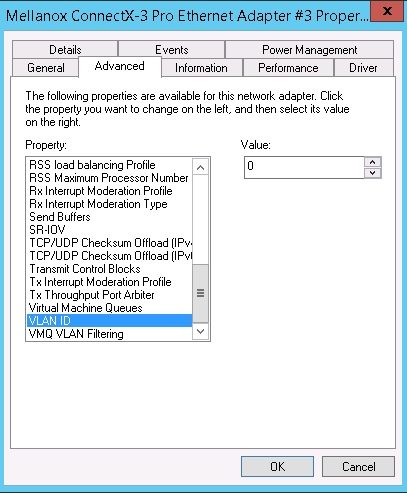
If you want to configure a single VLAN in the interface, go to Network Connections > Properties > Advanced tab > Select the VLAN ID field and add the desired value.
If you want multiple VLANs in the same interface, make sure that the property VLAN ID is set to 0 - otherwise, it will not work.
Access your server’s IPMI via the Remote access feature.
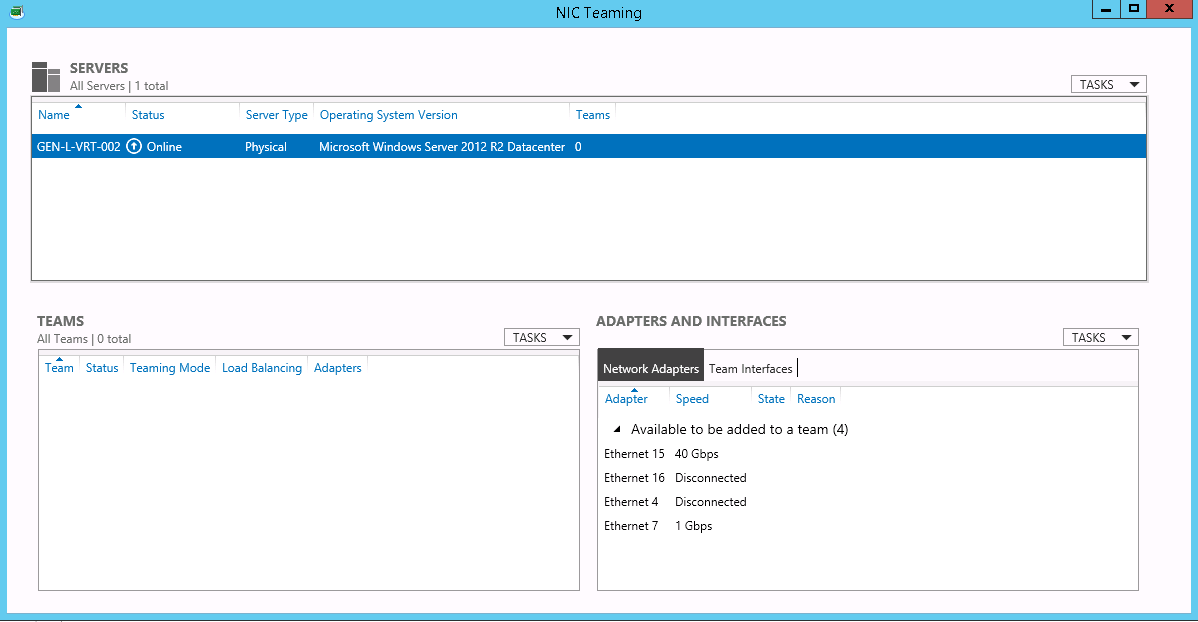
On your IPMI interface go to Server Manager > Local server and click on NIC Teaming.
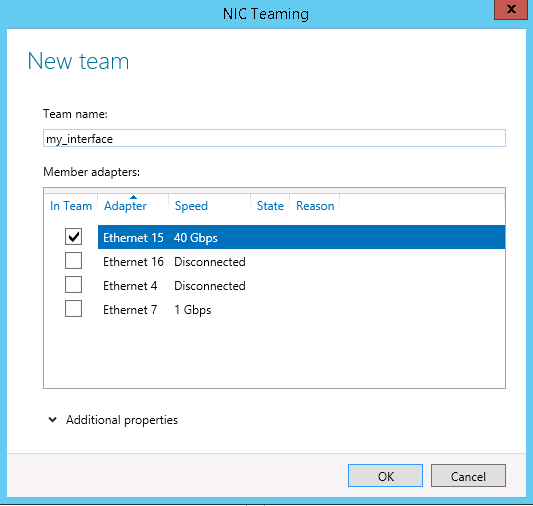
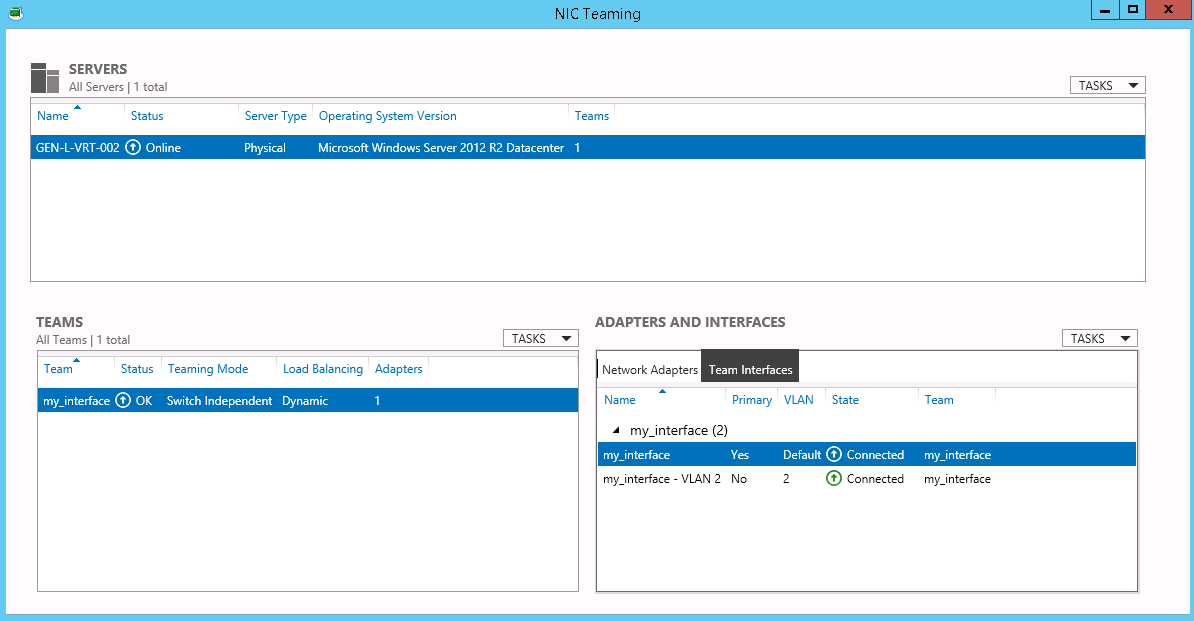
Create a new Team with a single interface by going to Teams > Tasks > New Team. Select the desired interface (e.g. 40GbE) and give it a name. Once you create the Team, your IP configuration will be cleaned and your server’s internet connection will be lost until the end of the process. Select your secondary interface for the private VLAN.
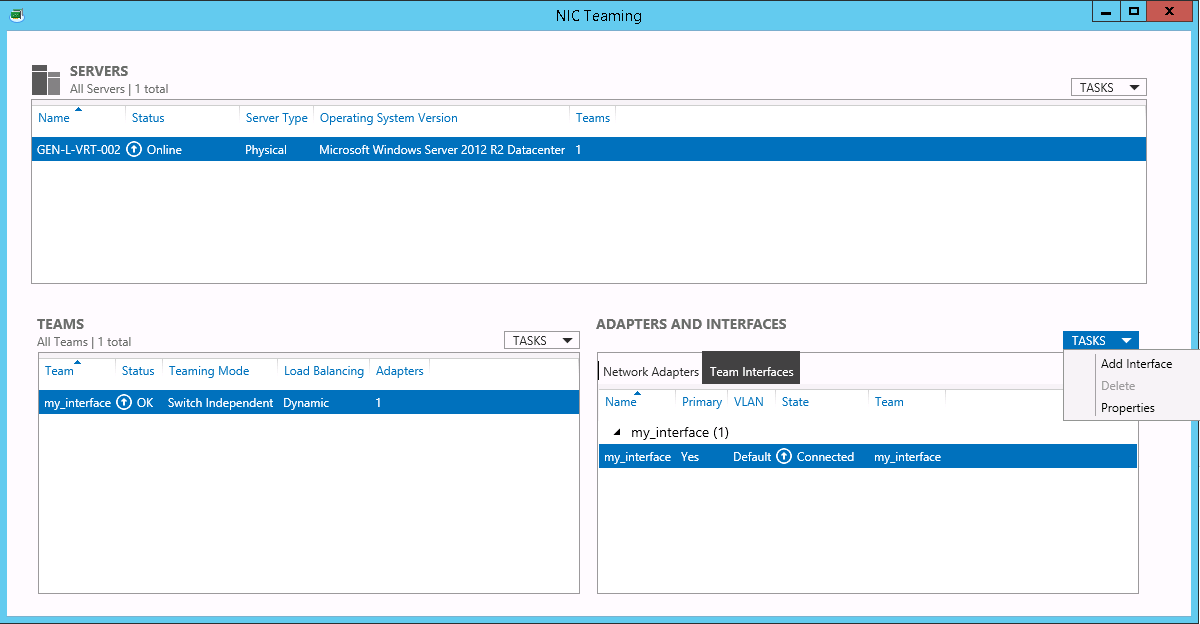
Go to Adapter and Interfaces and click on TASKS > Add Interface. The first interface needs to have the VLAN ID 0 (zero) or Default.
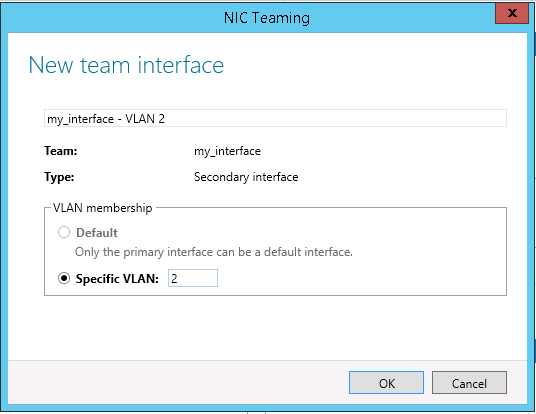
Configure the specific VLAN and click OK. The VLAN ID that you need to configure is the same displayed on your dashboard.
To add another VLAN interface on the same port, repeat step #4.
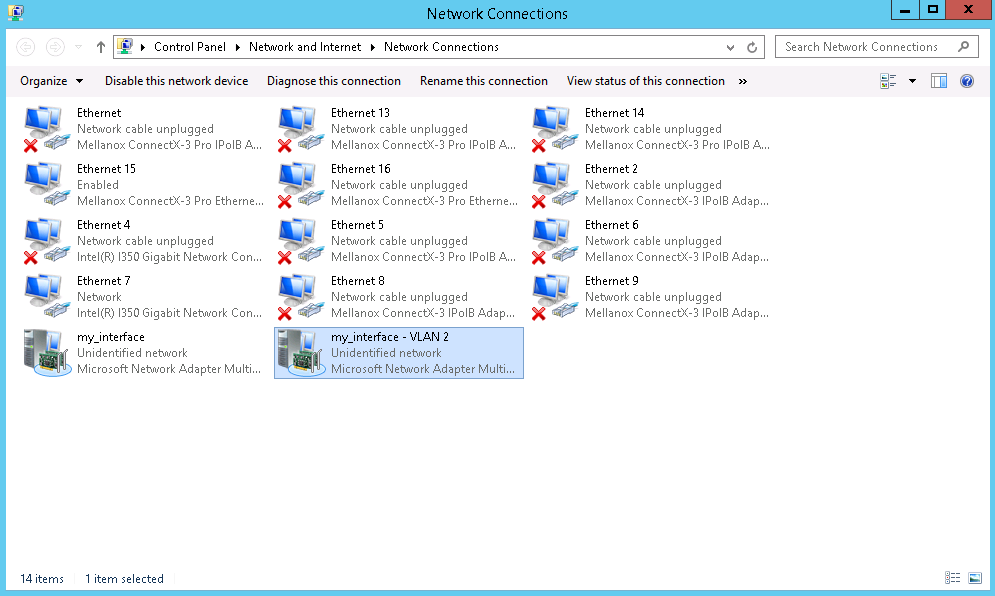
To assign an IP address to the new interface, click on Network Connections, and find the VLAN interface you have just added. Then, configure the IP similarly to any other interface. You need to configure the VLAN 0 with your public IP.
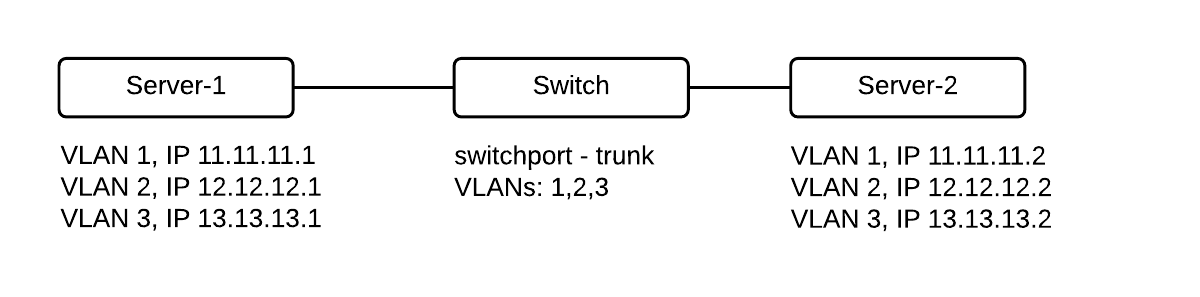
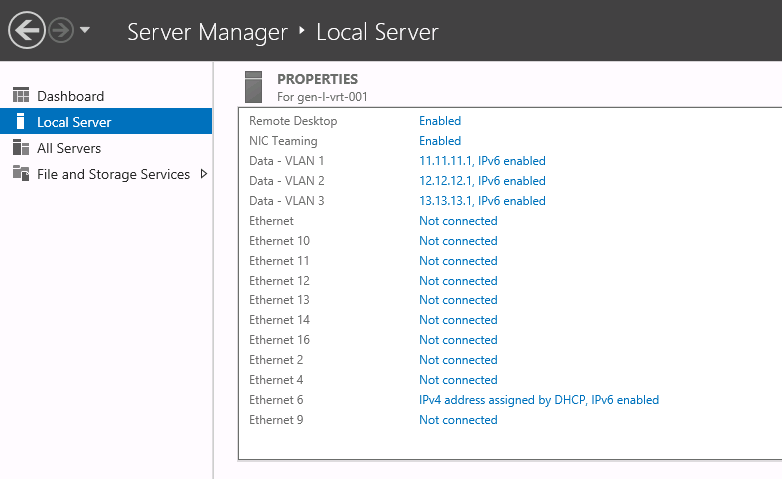
You can configure any IP address in your private VLAN (e.g.: 10.10.10.1/24) and you don’t need to configure a Gateway in the private interfaces. Gateway information is only mandatory for ’ Public’ Interfaces.Let’s say you created three VLAN interfaces (VLANs 1,2,3) on the teaming interface and add three IP addresses, here is what you should see on the Server Manager window:Troubleshooting
If you try to configure multiple VLANs, make sure that the value of the VLAN ID field in the properties Advanced tab is equal to 0.
Do not configure the primary virtual interface with the VLAN ID, as it needs to be on its default configuration (VLAN ID 0). When the port configuration is set up to native VLAN, do not change this VLAN configuration.
1
Load the 8021q module
In Red Hat Enterprise Linux and Centos 7, the 8021q module is loaded by default. If necessary, you can make sure that the module is loaded by issuing the following command as root:
modprobe --first-time 8021qmodprobe: ERROR: could not insert '8021q': Module already in kernel
2
Display module information
To display information about the module, issue the following command:
modinfo 8021q
3
Additional options
See the modprobe(8) man page for more command options.
Configure the parent interface in /etc/sysconfig/network-scripts/ifcfg-eno2.
DEVICE=eno2TYPE=EthernetBOOTPROTO=noneONBOOT=yes
2
Set the VLAN interface configuration
Set the VLAN interface configuration in the /etc/sysconfig/network-scripts/ directory. The configuration file name should be the parent interface plus a . character followed by the VLAN ID number. For example, if the VLAN ID is 192, and the parent interface is eth0, then the configuration file name should be ifcfg-eno2.192:
If there is a need to configure a second VLAN, with, for example, VLAN ID 193, on the same interface, eno2, add a new file with the name eno2.193 with the VLAN configuration details. Restart the networking service in order for the changes to take effect. As root issue the following command: