> ## Documentation Index
> Fetch the complete documentation index at: https://www.latitude.sh/docs/llms.txt
> Use this file to discover all available pages before exploring further.
# SAML Single Sign-On (SSO)
If your company uses an identity provider like Okta or OneLogin, your IT department will want to configure SAML.
SAML lets you manage [Members](/teams/members) of your Team through your identity provider and gives you more control over who has access to your Latitude.sh dashboard.
## Get access to SAML SSO
SAML is available as an addon that can be purchased directly from your dashboard. You can configure and purchase SSO for your organization's domains with just a few clicks.
**Pricing**: For up-to-date pricing information, please visit the [addons pricing page](https://www.latitude.sh/pricing/addons).
Latitude.sh supports all major identity providers and then some. Here's a non-exclusive list of supported providers. If your identity provider is not listed here, reach out to the [engineering](mailto:engineering@latitude.sh) team for assistance.
* ADP \* Active Directory Federation Services \* Auth0 \* Azure Active
Directory \* CAS \* ClassLink \* Cloudflare \* CyberArk \* Duo \* Generic OIDC \*
Generic SAML \* Google \* JumpCloud \* Keycloak \* LastPass \* Login.gov \*
miniOrange \* NetIQ \* Okta \* OneLogin \* Oracle \* PingFederate \* PingOne \*
Rippling \* Salesforce \* Shibboleth \* Shibboleth Generic \* SimpleSAMLphp \*
VMware
## Configuring SAML
**Prerequisites**: Your team must be verified before you can set up SAML SSO. If your team is not yet verified, you'll need to complete the verification process first.
### Step 1: Purchase SAML SSO
From the [dashboard](https://www.latitude.sh/dashboard), navigate to **Settings** → **Members & access** → **Single Sign-On (SSO)** tab.
On this page, click **Setup SSO** to open the SSO setup modal.
Configure your domains: - **Domains**: Add the domains that will use SSO
authentication (e.g., company.com) - **Billing period**: Choose between
monthly or yearly billing
Review the pricing and click **Setup SSO** to complete the purchase.
### Step 2: Complete SSO Configuration
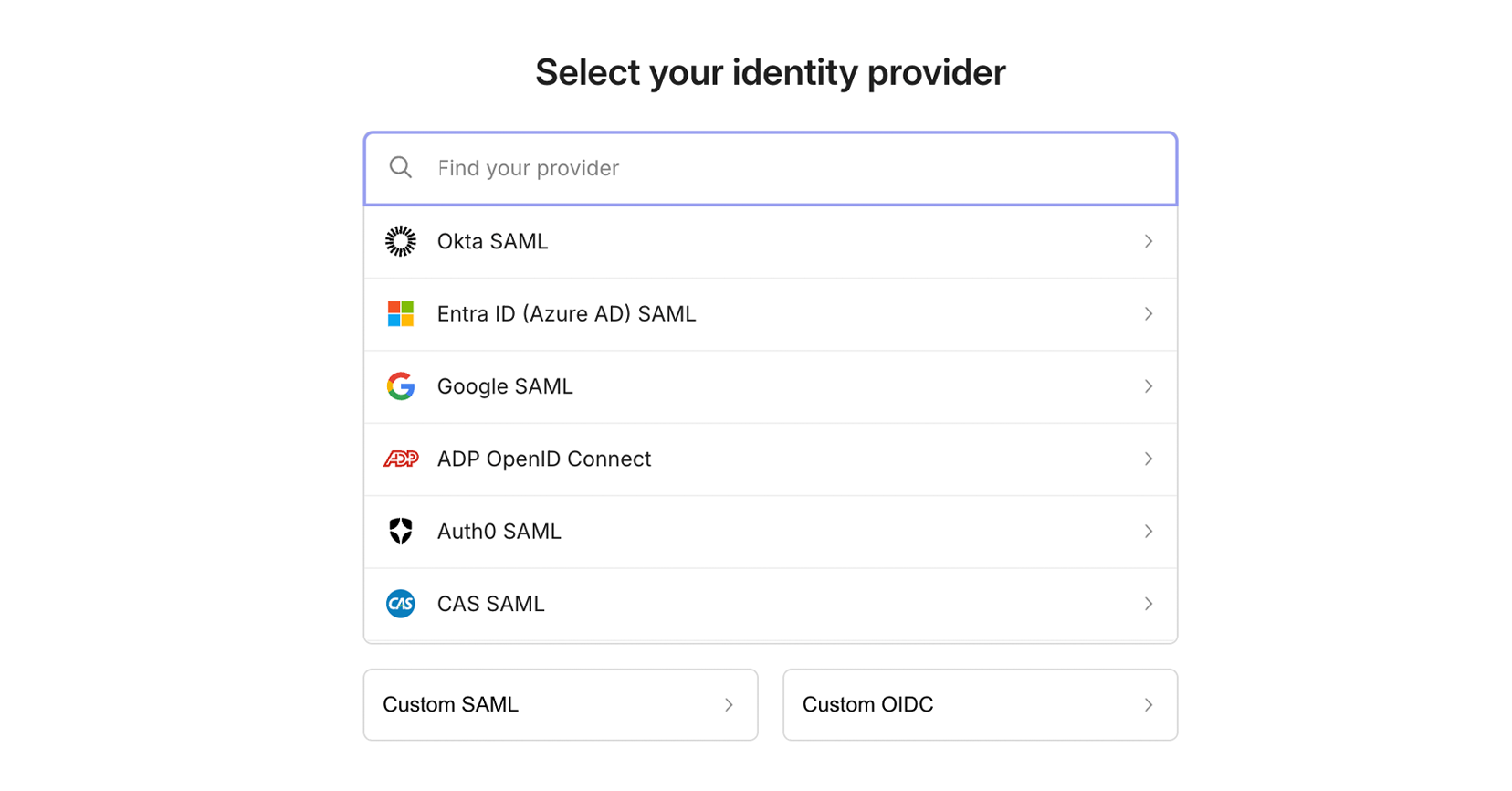 After purchasing, you'll see your configured domains and connection status. Click **Complete Setup** to select your identity provider and finish configuring SAML through the guided setup process.
## Authenticating with SAML
Once you have configured SAML, your team members can use SAML SSO to log in. Type your email address on the authentication page and the "Continue with SAML SSO" button will become available.
If you are already logged in to your identity provider, you will be automatically logged into your Latitude.sh. If not, you will be redirected to your identity provider to finish authenticating. SAML SSO sessions last for 24 hours.
Once SAML SSO is active, users with emails from the specified domain will only
be able to authenticate through SAML SSO.
After purchasing, you'll see your configured domains and connection status. Click **Complete Setup** to select your identity provider and finish configuring SAML through the guided setup process.
## Authenticating with SAML
Once you have configured SAML, your team members can use SAML SSO to log in. Type your email address on the authentication page and the "Continue with SAML SSO" button will become available.
If you are already logged in to your identity provider, you will be automatically logged into your Latitude.sh. If not, you will be redirected to your identity provider to finish authenticating. SAML SSO sessions last for 24 hours.
Once SAML SSO is active, users with emails from the specified domain will only
be able to authenticate through SAML SSO.