> ## Documentation Index
> Fetch the complete documentation index at: https://www.latitude.sh/docs/llms.txt
> Use this file to discover all available pages before exploring further.
# Support access
> Grant Latitude.sh staff temporary access to your team to help troubleshoot.
Support access lets you allow Latitude.sh support staff to temporarily join your team account for troubleshooting and operational assistance. When some issues are easier to resolve from the inside, granting access lets our team see what you see and act on your behalf—without you sharing credentials.
Access is **time-limited** and **fully under your control**: you choose how long it lasts, and you can revoke it at any time. When the grant expires—or when you revoke it—all Latitude.sh staff members are removed from your team automatically.
 ## Grant access
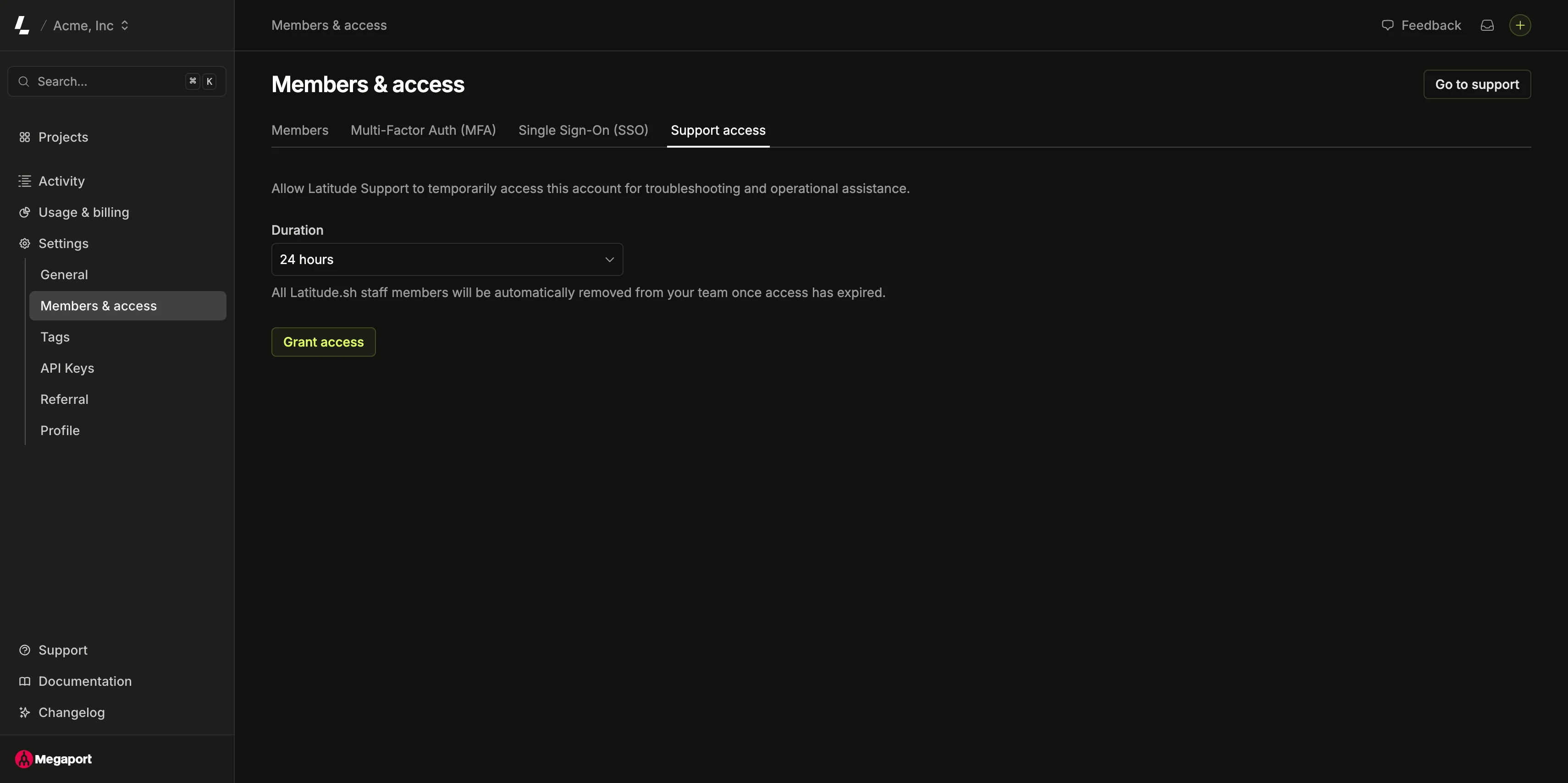
In the dashboard, go to **Support** and click **Support account access**, or navigate to **Settings → Members & access → Support access**.
Pick how long staff should have access from the **Duration** dropdown:
* **8 hours**
* **24 hours** (default)
* **48 hours**
* **1 week**
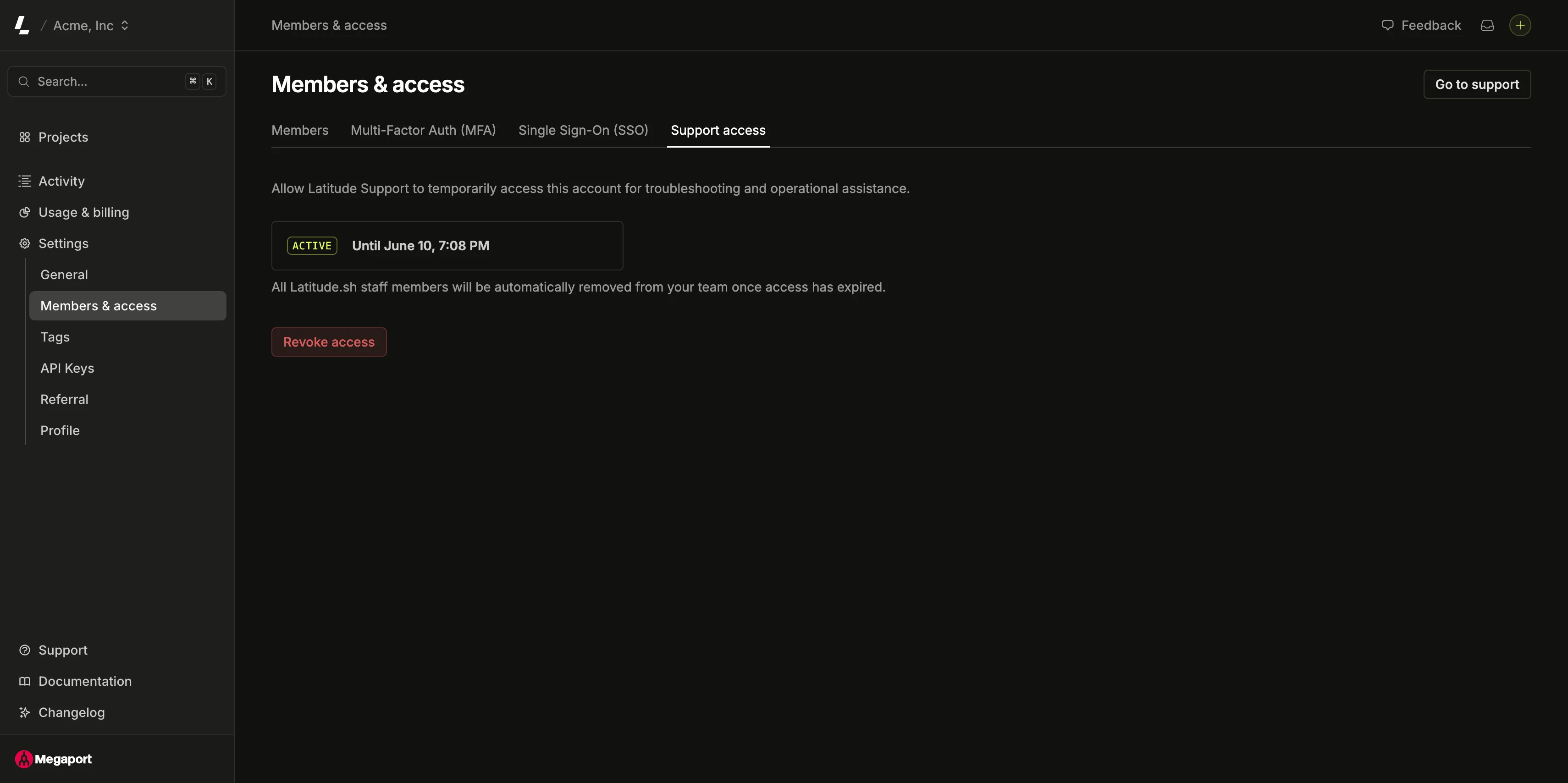
Click **Grant access**. The page updates to show an **Active** status and the date and time the access expires.
While access is active, a reminder appears on the **Support** page letting you know that Latitude.sh staff can access your team, along with a link to manage it.
## Grant access
In the dashboard, go to **Support** and click **Support account access**, or navigate to **Settings → Members & access → Support access**.
Pick how long staff should have access from the **Duration** dropdown:
* **8 hours**
* **24 hours** (default)
* **48 hours**
* **1 week**
Click **Grant access**. The page updates to show an **Active** status and the date and time the access expires.
While access is active, a reminder appears on the **Support** page letting you know that Latitude.sh staff can access your team, along with a link to manage it.
 ## Expiration
Support access always ends—you never have to remember to turn it off.
All Latitude.sh staff members are automatically removed from your team once access has expired.
When the duration you selected elapses, the grant ends on its own and any Latitude.sh staff who joined your team are removed automatically. No action is required on your part.
## Revoke access early
You don't have to wait for the timer to run out. While access is active, open the **Support access** page and click **Revoke access**. Staff members are removed from your team immediately.
## Related
* [Contact support](/docs/support/contact-support) — chat with the AI agent or open a ticket.
* [Team members](/docs/teams/members) — manage who belongs to your team and their roles.
## Expiration
Support access always ends—you never have to remember to turn it off.
All Latitude.sh staff members are automatically removed from your team once access has expired.
When the duration you selected elapses, the grant ends on its own and any Latitude.sh staff who joined your team are removed automatically. No action is required on your part.
## Revoke access early
You don't have to wait for the timer to run out. While access is active, open the **Support access** page and click **Revoke access**. Staff members are removed from your team immediately.
## Related
* [Contact support](/docs/support/contact-support) — chat with the AI agent or open a ticket.
* [Team members](/docs/teams/members) — manage who belongs to your team and their roles.