> ## Documentation Index
> Fetch the complete documentation index at: https://www.latitude.sh/docs/llms.txt
> Use this file to discover all available pages before exploring further.
# User data
User data are scripts that use the `cloud-config` format, designed to be run by the cloud-init process. These scripts are generally used for the initial configuration of a server and run on the first boot.
Deploying a server with user data allows you to run arbitrary commands and change several aspects of the server during provisioning.
Here are a few examples of what you can do with user data scripts:
* Change user passwords
* Server hardening
* Notify people or systems that a new device has been deployed
* Install packages and dependencies
 ## Compatibility
Here are the operating systems that currently support setting user data and the directive you should use when writing your scripts.
| Distro | OS | Directive | Language |
| :------ | :-------------------------------------------------------------------------------------------------------------------------------------- | :---------------- | :--------- |
| Linux | - Ubuntu 16.04 LTS and newer
## Compatibility
Here are the operating systems that currently support setting user data and the directive you should use when writing your scripts.
| Distro | OS | Directive | Language |
| :------ | :-------------------------------------------------------------------------------------------------------------------------------------- | :---------------- | :--------- |
| Linux | - Ubuntu 16.04 LTS and newer
- CentOS 7.4 and newer
- Rocky Linux
- Debian 10 and newer
- RedHat Enterprise Linux | `#cloud-config` | YAML |
| Windows | - All Windows images | `# ps1_sysnative` | PowerShell |
## File format
### UNIX-like systems
If you're using a UNIX-like OS like Linux, your scripts must be written using the YAML file format, which uses whitespace and new lines to delimit lists, associative arrays, and values.
Here's an example of a user data script that uses the `{{ PASSWORD }}` variable to change the root password and allow for root logins.
```yaml theme={null}
#cloud-config
user: root
chpasswd: { expire: false }
password: { { PASSWORD } }
disable_root: false
ssh_pwauth: true
runcmd:
- echo "PermitRootLogin yes" >> /etc/ssh/sshd_config
- systemctl restart ssh
```
These files are generally fairly intuitive and easy to understand, but there are a few things you need to keep in mind when using them. Here is a good [getting started guide](https://docs.ansible.com/ansible/latest/reference_appendices/YAMLSyntax.html) that can help.
Always validate your YAML code. Google 'YAML validator' if you don't have a
linter on your IDE, but remember never to add sensitive data to these
services.
### Windows systems
For Windows, you'll have to use the `cloud-baseinit` convention. This is just a fancy way of saying that your user data will have to be written as if you were using Powershell. Here's a straightforward example:
```powershell theme={null}
#ps1_sysnative
mkdir c:/test
New-Item c:/test/test.txt
Set-Content c:/test/test.txt 'Hello World'
```
## Creating a user data
Before creating a user data script, make sure you're using the [correct directive and programming language](#compatibility) for the operating system you'll be using it with.
### From scratch
Go to the [dashboard](https://www.latitude.sh/dashboard), select a project, and navigate to **Compute > User data** in the sidebar. Click **Create user data...** and choose **From scratch**.
 Select whether to make this user data available across all projects (**Team**) or only within the current project (**Project**).
 Write your user data script using the [correct directive and language](#compatibility) for your operating system.
### From a template
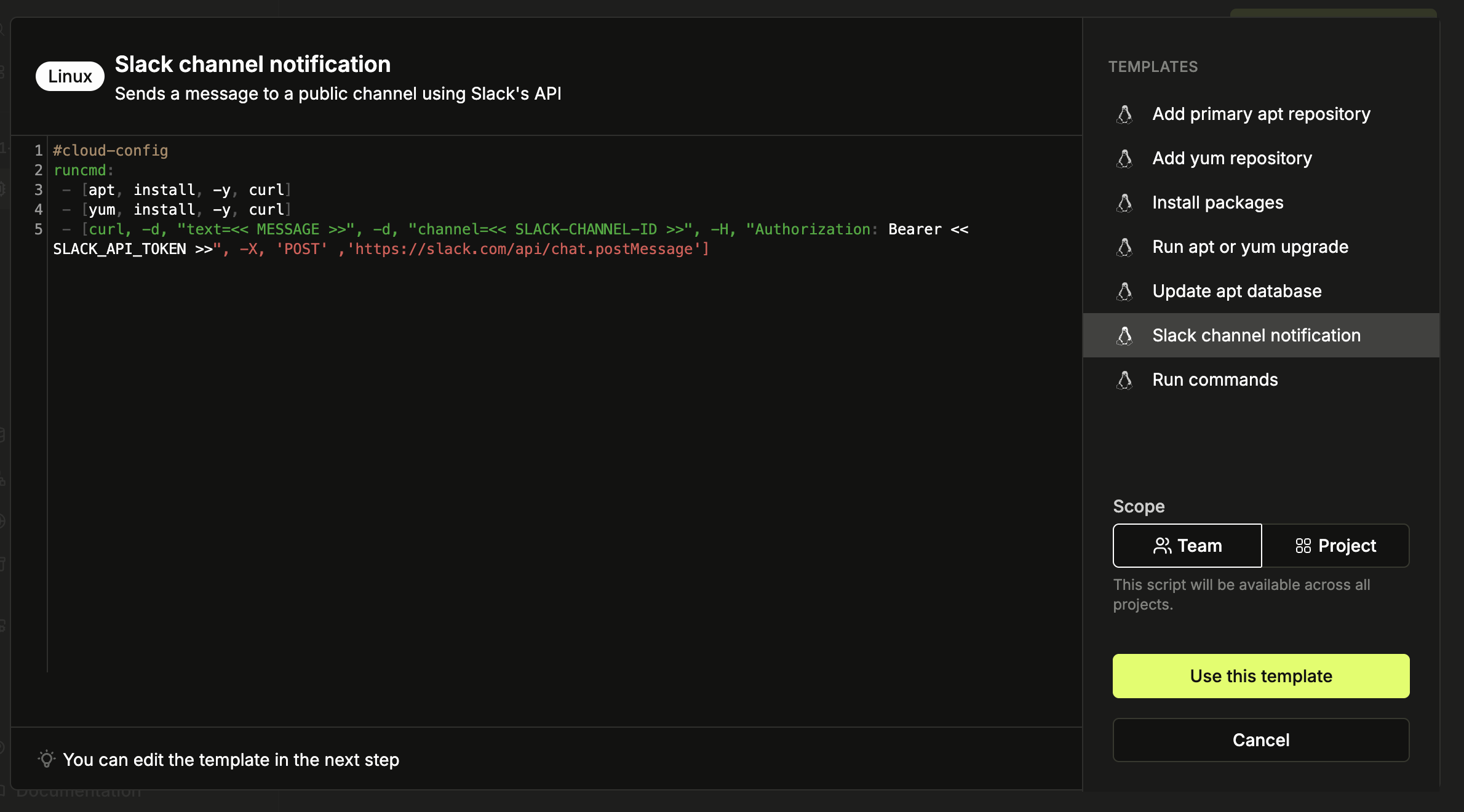
You can start with user data scripts by choosing one of the provided templates. From package updates to notifying Slack on deploys, templates are available for different use cases.
Go to the [dashboard](https://www.latitude.sh/dashboard), select a project, and navigate to **Compute > User data** in the sidebar, click **Create user data...** and choose **From template**.
Choose the template you want to use. Select whether to make this user data available to all projects (**Team**) or only the current project (**Project**).
Click **Use this template**, then edit the content as needed.
## Project and Team scope
When you create a user data script, you can choose whether to make it available across all projects in your team or scope it to a specific project.
* **Team**: Available across all projects in your team. This is the default scope.
* **Project**: Only available within the current project. Useful for project-specific server configuration.
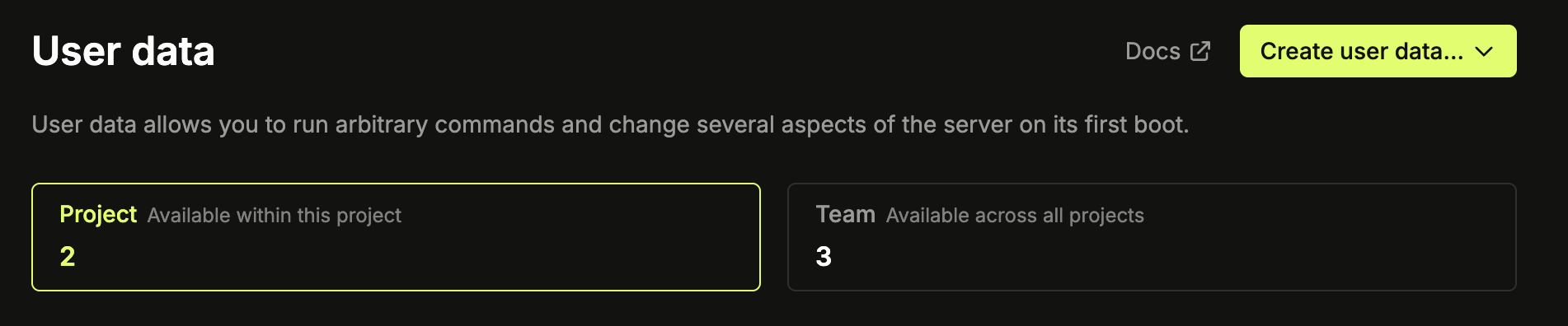
The user data page shows two tabs for managing these scopes.
Write your user data script using the [correct directive and language](#compatibility) for your operating system.
### From a template
You can start with user data scripts by choosing one of the provided templates. From package updates to notifying Slack on deploys, templates are available for different use cases.
Go to the [dashboard](https://www.latitude.sh/dashboard), select a project, and navigate to **Compute > User data** in the sidebar, click **Create user data...** and choose **From template**.
Choose the template you want to use. Select whether to make this user data available to all projects (**Team**) or only the current project (**Project**).
Click **Use this template**, then edit the content as needed.
## Project and Team scope
When you create a user data script, you can choose whether to make it available across all projects in your team or scope it to a specific project.
* **Team**: Available across all projects in your team. This is the default scope.
* **Project**: Only available within the current project. Useful for project-specific server configuration.
The user data page shows two tabs for managing these scopes.
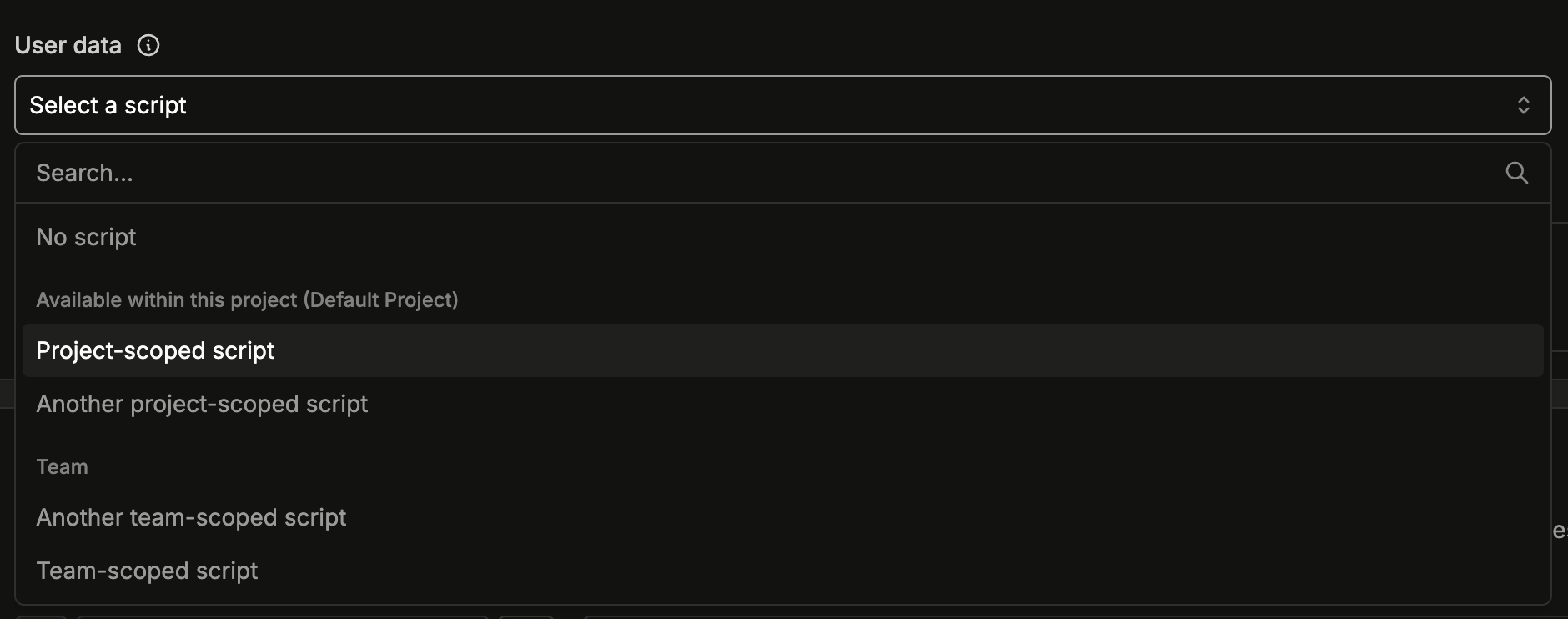
 When selecting user data during deployment or reinstallation, your scripts will be grouped by scope, with project-scoped scripts appearing first, then team-scoped scripts.
 ## Variables
To make development easier, variables are provided that can be used in your user data script so you can access data that is only available during or right after a deployment.
Variables are wrapped in double curly brackets (`{{ VAR }}`). Here are the available variables that can be used by any user data script.
| Variable | Value |
| :------------------ | :--------------------------------------------------------------------- |
| `{{ HOSTNAME }}` | The normalized hostname. |
| `{{ PASSWORD }}` | Root password of the deployed server. |
| `{{ USER_DISTRO }}` | Distro username. Examples: ubuntu, centos, Admin. |
| `{{ MAC_ADDRESS }}` | MAC Address. |
| `{{ PUBLIC_IPV4 }}` | Public IPv4 address. |
| `{{ SSH_KEYS }}` | An array of the SSH keys you chose to deploy your server with, if any. |
| `{{ SERIAL }}` | Windows serial (only available for Windows systems). |
## Examples
* [Examples repository](https://github.com/latitudesh/examples)
* [cloud-init's docs](https://cloudinit.readthedocs.io/en/latest/topics/examples.html).
## Variables
To make development easier, variables are provided that can be used in your user data script so you can access data that is only available during or right after a deployment.
Variables are wrapped in double curly brackets (`{{ VAR }}`). Here are the available variables that can be used by any user data script.
| Variable | Value |
| :------------------ | :--------------------------------------------------------------------- |
| `{{ HOSTNAME }}` | The normalized hostname. |
| `{{ PASSWORD }}` | Root password of the deployed server. |
| `{{ USER_DISTRO }}` | Distro username. Examples: ubuntu, centos, Admin. |
| `{{ MAC_ADDRESS }}` | MAC Address. |
| `{{ PUBLIC_IPV4 }}` | Public IPv4 address. |
| `{{ SSH_KEYS }}` | An array of the SSH keys you chose to deploy your server with, if any. |
| `{{ SERIAL }}` | Windows serial (only available for Windows systems). |
## Examples
* [Examples repository](https://github.com/latitudesh/examples)
* [cloud-init's docs](https://cloudinit.readthedocs.io/en/latest/topics/examples.html).