> ## Documentation Index
> Fetch the complete documentation index at: https://www.latitude.sh/docs/llms.txt
> Use this file to discover all available pages before exploring further.
# Rescue mode
Rescue mode is useful when you lose access to your server and SSH becomes unreachable. It allows you to recover data and make changes to the instance without having to use [Remote access](/docs/servers/remote-access) or reinstall the device.
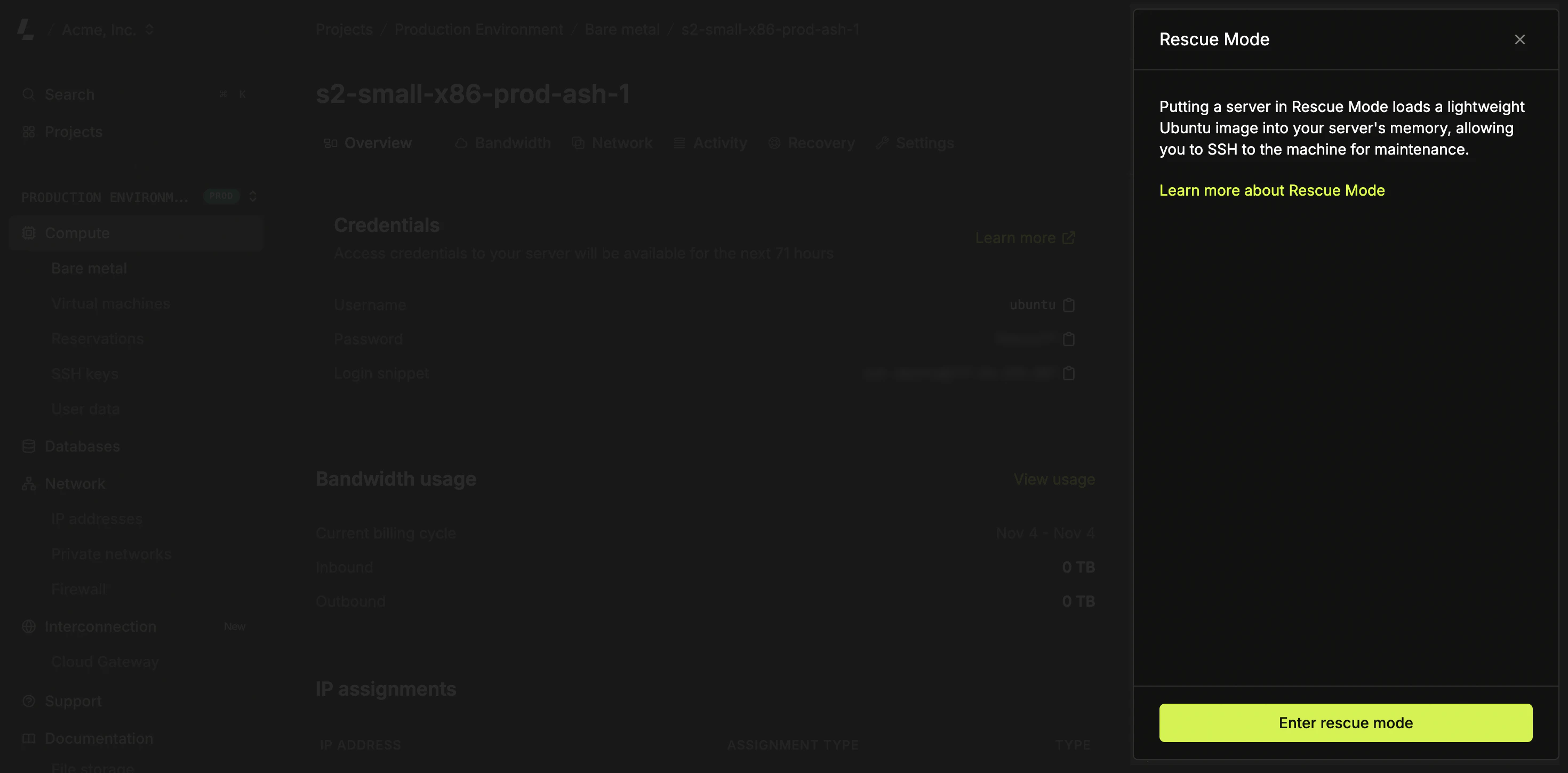
When you put a server in rescue mode, a lightweight Ubuntu image is loaded into your server's memory. This allows you to SSH to the machine and do maintenance.
Rescue is not available for servers running Windows.
Rescue mode is not available at certain locations. If you don't see this option in the **Actions** menu, it's not supported at your server's location.
## Booting into Rescue Mode
In order to boot into rescue mode, simply go the server page, click **Actions** and select *Rescue mode*.
 ### Accessing the server
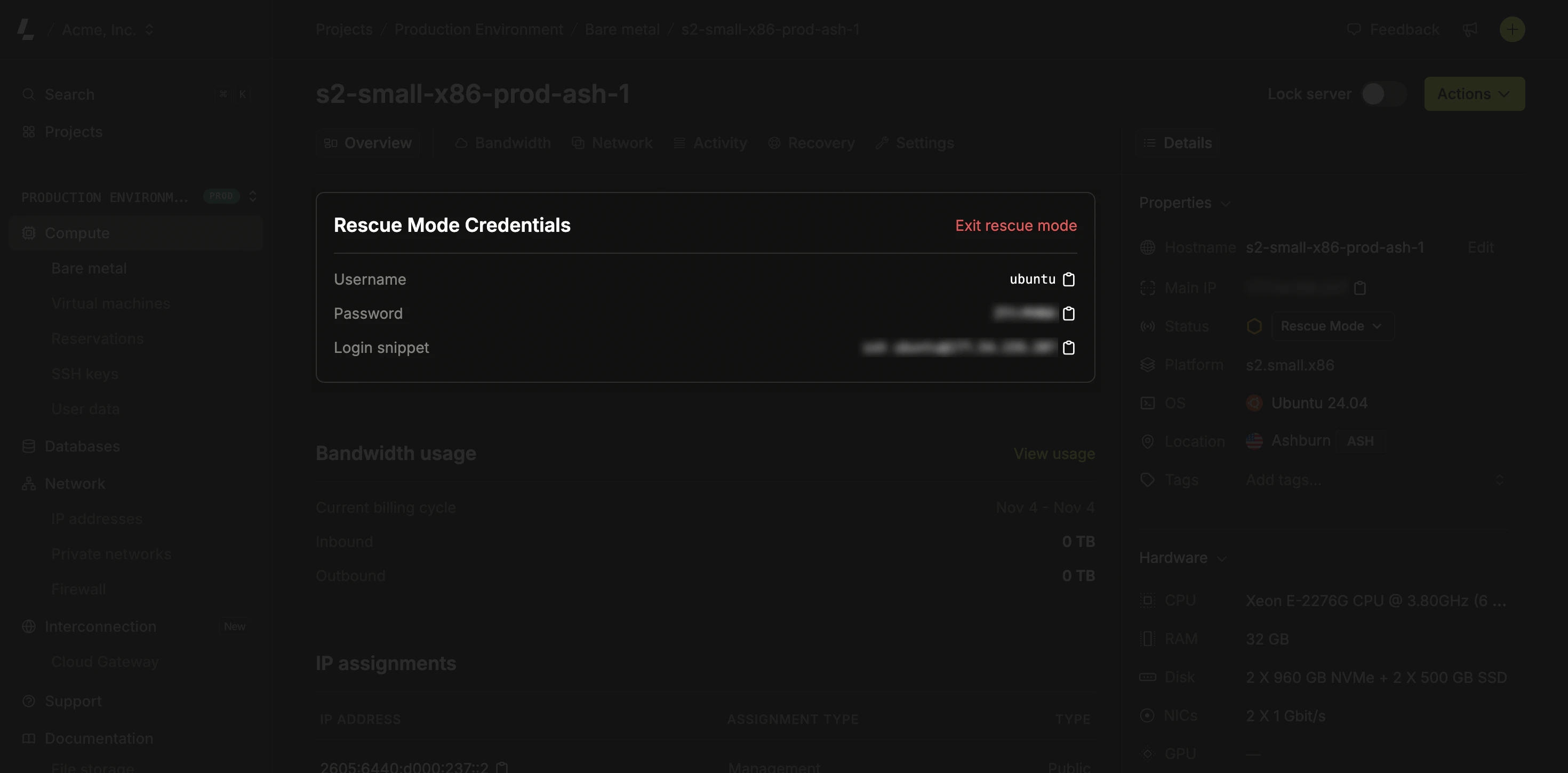
When the server finishes loading the rescue operating system, a user and password with root access will be shown on the server page.
### Accessing the server
When the server finishes loading the rescue operating system, a user and password with root access will be shown on the server page.
 ### Mounting the root partition
The first thing to do is find the root partition. Running `lsblk` will retrieve all partitions. Find the disk that represents the root partition of your server. This is usually the largest partition from the ones listed.
Mount the partition replacing the placeholder with the root partition name:
```shell theme={null}
sudo mount /dev/sda2 /mnt -t ext4
```
Here the root partition `/dev/sda2` is being mounted to the `/mnt` dir.
Root partition for servers with NVMe disks are slightly different, similar to the example below:
```shell theme={null}
sudo mount /dev/nvme0n1p1 /mnt -t ext4
```
When the partition mounts successfully, go to the `/mnt` directory to work on your files.
```shell theme={null}
cd /mnt
```
## Troubleshooting
If issues are found entering or exiting rescue mode, the server will return to its previous state, either Deployed or Failed, depending on the case. This is an indication to use [Remote access](/docs/servers/remote-access) to troubleshoot your server instead.
### Mounting the root partition
The first thing to do is find the root partition. Running `lsblk` will retrieve all partitions. Find the disk that represents the root partition of your server. This is usually the largest partition from the ones listed.
Mount the partition replacing the placeholder with the root partition name:
```shell theme={null}
sudo mount /dev/sda2 /mnt -t ext4
```
Here the root partition `/dev/sda2` is being mounted to the `/mnt` dir.
Root partition for servers with NVMe disks are slightly different, similar to the example below:
```shell theme={null}
sudo mount /dev/nvme0n1p1 /mnt -t ext4
```
When the partition mounts successfully, go to the `/mnt` directory to work on your files.
```shell theme={null}
cd /mnt
```
## Troubleshooting
If issues are found entering or exiting rescue mode, the server will return to its previous state, either Deployed or Failed, depending on the case. This is an indication to use [Remote access](/docs/servers/remote-access) to troubleshoot your server instead.