> ## Documentation Index
> Fetch the complete documentation index at: https://www.latitude.sh/docs/llms.txt
> Use this file to discover all available pages before exploring further.
# Out-of-band
Out-of-Band (OOB) gives you direct access to your server’s hardware-level serial console over SSH.
This lets you see and interact with the system before and during boot, including BIOS, GRUB, and early kernel output. Out-of-band automatically enables a serial login on the server after boot, so you can also use OOB to administer Linux even when normal SSH is unavailable.
### What to expect
A Serial-over-LAN console behaves differently from a normal SSH session:
* It is lower bandwidth and may refresh slowly
* The BIOS interface appears in text mode
* Keystrokes may feel slightly delayed
* It looks like a normal terminal after login, but it is still a serial console
* Graphical KVM output is not available here (use [Remote Access](/docs/servers/remote-access) instead)
Despite these limitations, OOB provides full control of the machine at every boot stage. For full graphical keyboard-video-mouse access, use Remote Access.
## Requirements
To access your server’s serial console you need:
* An SSH key (configured in your Latitude.sh account) to open the OOB connection
* An OS user password set on the server — required to log in to Linux through the serial console
Servers deployed with only an SSH key don’t have an OS password by default. Before relying on OOB to log in after boot, SSH into the server and set one — run `passwd` to set the root password, or `sudo passwd ` for another OS user.
If you lost your root password, use [Rescue mode](/docs/servers/rescue-mode) to reset it.
## Creating an OOB connection
1. Go to the server page, click the **Recovery** tab, and select **Out-of-Band**.
2. Select your SSH key and click **Enable out-of-band**.
3. Wait until the process finishes and the status change from **Connecting** to **Connected**.
## Using the console
Copy the command snippet from the side panel on your terminal. It will look similar to this:
```shell theme={null}
ssh @ -p 2222
```
If OOB is active, you will see:
```shell theme={null}
[SOL Session operational. Use ~? for help]
```
### Capabilities
#### Before boot
You can:
* Change boot order
* Inspect hardware setup
When you reboot you can:
* Enter BIOS (DEL/ESC)
* View POST and GRUB
#### After boot
Hit Enter to see the Linux login prompt:
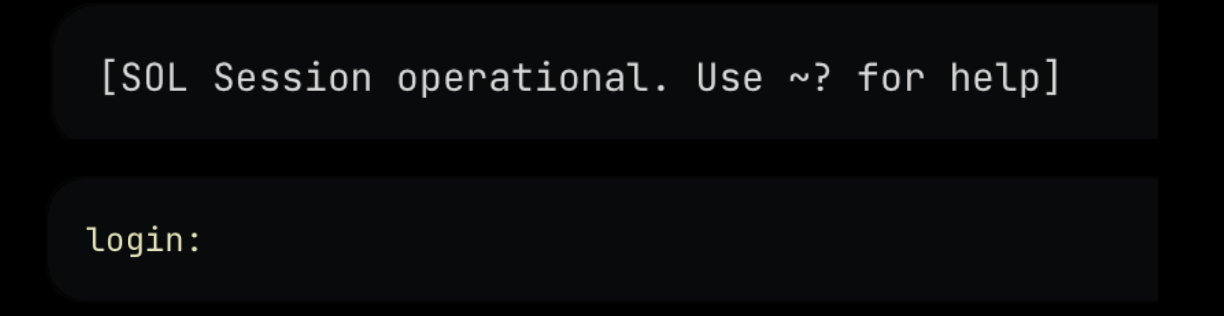 Log in with the OS user password you set on the server (`root` or another user with a password). This gives you a full Linux shell, identical in function to SSH but running on the serial console (ttyS0) instead of a network connection.
## Ending the session
To close the OOB session:
```shell theme={null}
~.
```
(tilde, then dot)
Log in with the OS user password you set on the server (`root` or another user with a password). This gives you a full Linux shell, identical in function to SSH but running on the serial console (ttyS0) instead of a network connection.
## Ending the session
To close the OOB session:
```shell theme={null}
~.
```
(tilde, then dot)