> ## Documentation Index
> Fetch the complete documentation index at: https://www.latitude.sh/docs/llms.txt
> Use this file to discover all available pages before exploring further.
# Deleting a server
> Learn how to delete a server immediately or schedule it for deletion.
Deleting a server permanently erases all data on its disks and **cannot be
undone**. Ensure you are deleting the correct server. Note that it may take up
to an hour for the deletion to reflect on your billing summary.
## Immediate deletion
Follow these steps to delete a server:
1. Open the server's page on the [dashboard](https://www.latitude.sh/dashboard/).
2. Click **Actions** and select **Delete server**.
3. Confirm the deletion by typing the server's hostname.
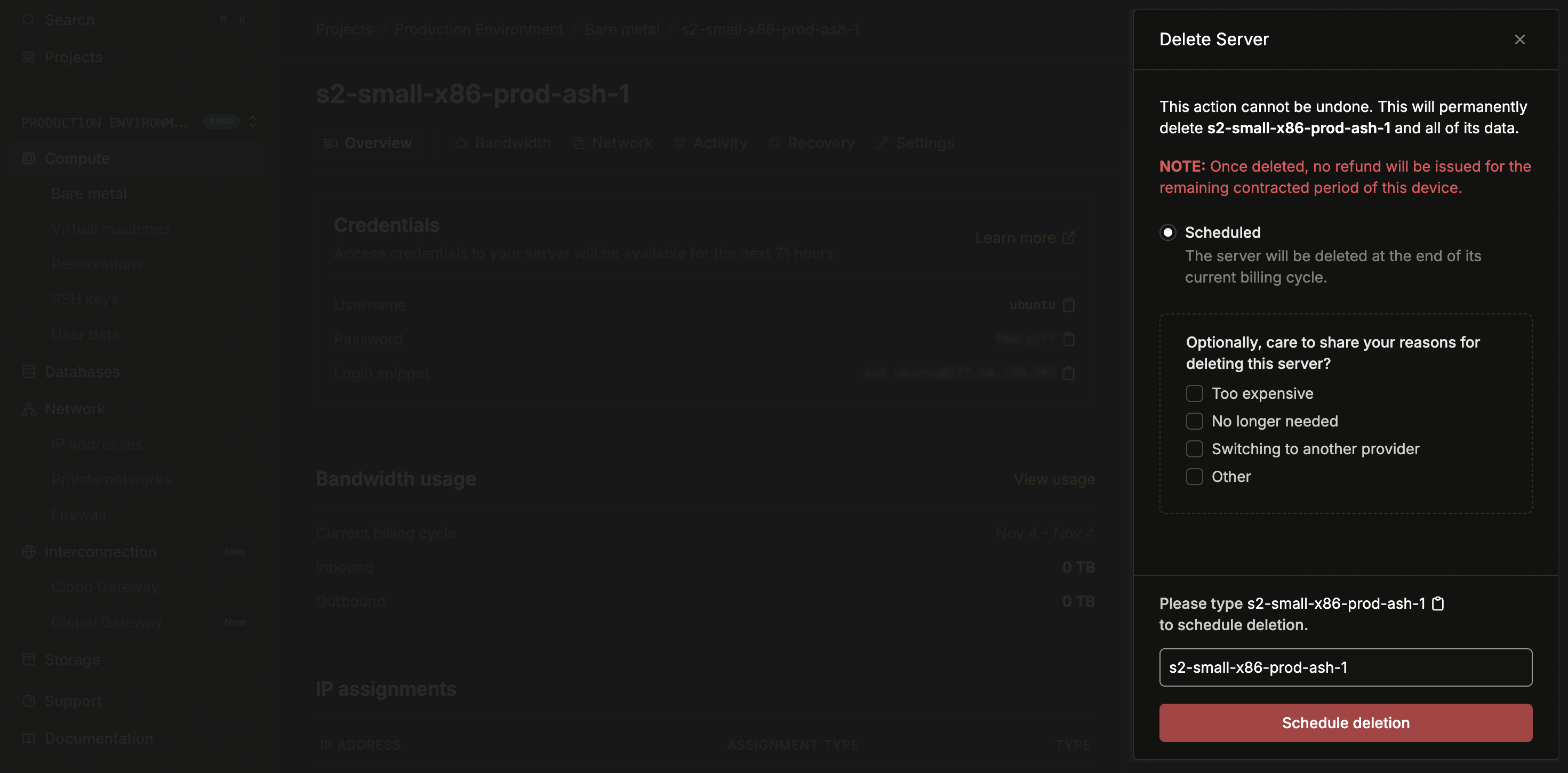 ## Scheduled deletion
You can schedule a server for deletion at a future date, allowing you to plan decommissioning while the server continues running.
To schedule a deletion:
1. Open the server's page on the [dashboard](https://www.latitude.sh/dashboard/).
2. Click **Actions** and select **Schedule deletion**.
3. Choose the date and time for the deletion.
4. Confirm by typing the server's hostname.
When a server is scheduled for deletion, an alert banner appears on the server details page showing the scheduled date.
## Canceling a scheduled deletion
You can cancel a scheduled deletion before it occurs.
1. Open the server's page on the [dashboard](https://www.latitude.sh/dashboard/).
2. Find the alert banner indicating the scheduled deletion.
3. Click **Cancel** on the alert banner.
The server will continue running normally.
## Scheduled deletion
You can schedule a server for deletion at a future date, allowing you to plan decommissioning while the server continues running.
To schedule a deletion:
1. Open the server's page on the [dashboard](https://www.latitude.sh/dashboard/).
2. Click **Actions** and select **Schedule deletion**.
3. Choose the date and time for the deletion.
4. Confirm by typing the server's hostname.
When a server is scheduled for deletion, an alert banner appears on the server details page showing the scheduled date.
## Canceling a scheduled deletion
You can cancel a scheduled deletion before it occurs.
1. Open the server's page on the [dashboard](https://www.latitude.sh/dashboard/).
2. Find the alert banner indicating the scheduled deletion.
3. Click **Cancel** on the alert banner.
The server will continue running normally.