> ## Documentation Index
> Fetch the complete documentation index at: https://www.latitude.sh/docs/llms.txt
> Use this file to discover all available pages before exploring further.
# Projects
Projects allow you to organize your servers and network resources, making it easier to manage your infrastructure.
* You will receive a separate invoice for each one of your Projects.
* Bandwidth is only pooled for servers in the same Project and country. Learn
more at [Bandwidth](/docs/usage/bandwidth).
* Users can access all Projects in
the same Team. To limit access, [create a new Team](/docs/teams/create-team).
Follow these steps to create a new project:
1. Go to the [Latitude.sh dashboard](https://www.latitude.sh/dashboard). Click on **Create Project** in the Projects section on the dashboard home page.
2. Choose a billing option based on your needs:
• **On Demand**: No long-term commitments. You'll be billed hourly or monthly.
• **Reserved**: Save 65% by reserving resources for 12 months. You'll be billed annually.
3. Enter a name for your project. You can also provide a short description to help your team members understand the project's purpose.
4. Select the environment for your project from the dropdown list. If you're unsure, you can leave this field blank or set it up later.
Once all the necessary information is filled out, click **Create project** to finalize the process.
## Project filtering
When you select a specific project in the dashboard, all resource views will be filtered to show only resources belonging to that project. If no resources exist in the selected project, you'll see a blank state with options to create a new resource inside the current project.
 ## Project settings
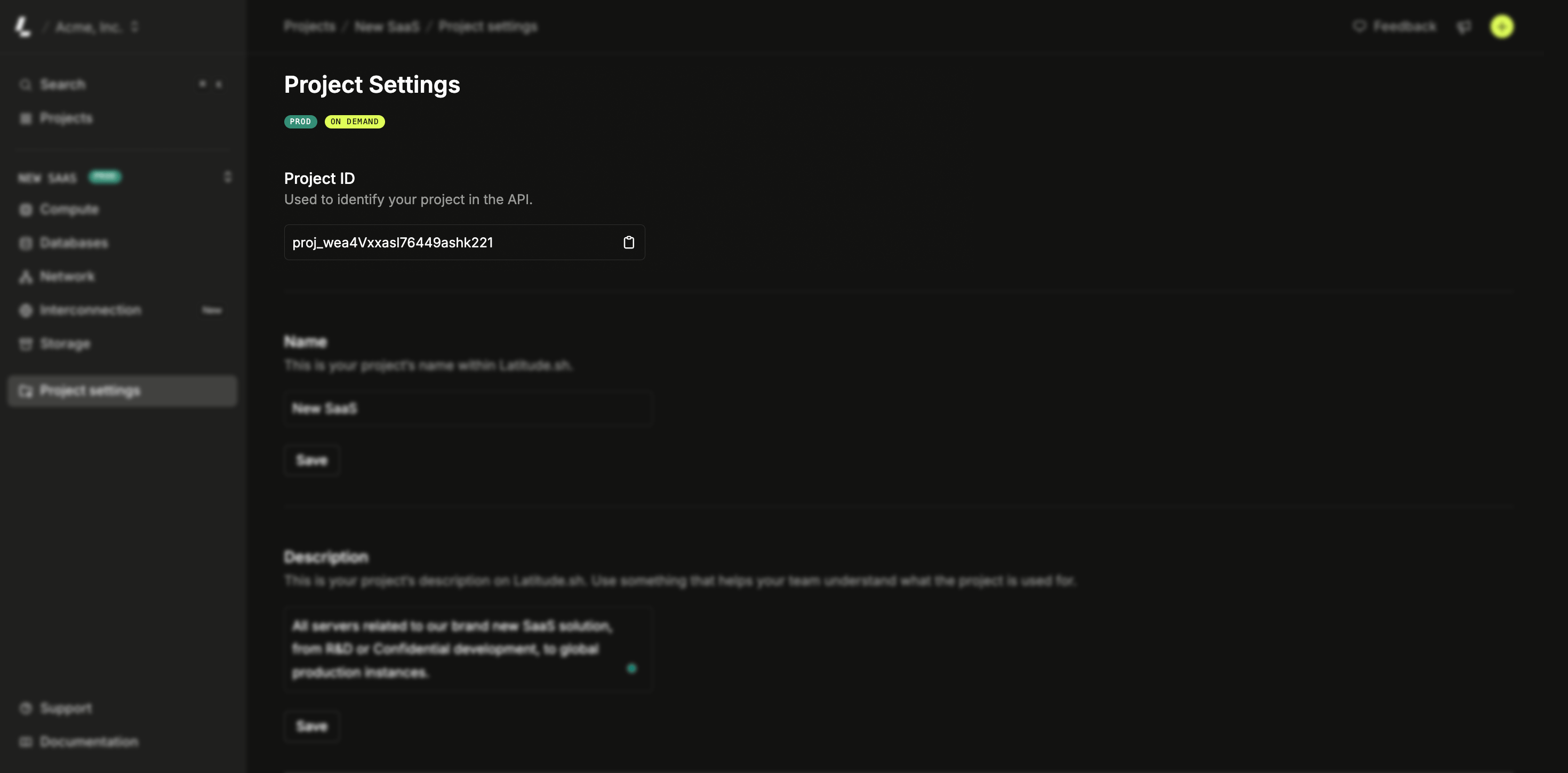
The Project Settings option allows you to configure key project-specific settings, including:
* Editing the project's name and description
* Changing the assigned environment
* Enabling bandwidth alerts
* Viewing the project ID
* Deleting the project
Go to the [Latitude.sh dashboard](https://www.latitude.sh/dashboard). Select
the project you want to manage using the project selector in the top
navigation bar. Next to the project selector you can see the cog icon, click
on it to open the project settings.
## Deleting a project
Deleting a project is irreversible. The associated subscription will be
canceled, and any pending invoice items will be invoiced. Before proceeding,
delete all servers and other resources linked to the project.
Follow these steps to delete a project:
Go to the [Latitude.sh dashboard](https://www.latitude.sh/dashboard). Select the project you want to manage using the project selector in the top navigation bar.
Next to the project selector you can see the cog icon, click on it to open the project settings. A side-panel will appear, scroll down to **Delete Project**. Click **Delete** and confirm by entering the project's name.
## Project settings
The Project Settings option allows you to configure key project-specific settings, including:
* Editing the project's name and description
* Changing the assigned environment
* Enabling bandwidth alerts
* Viewing the project ID
* Deleting the project
Go to the [Latitude.sh dashboard](https://www.latitude.sh/dashboard). Select
the project you want to manage using the project selector in the top
navigation bar. Next to the project selector you can see the cog icon, click
on it to open the project settings.
## Deleting a project
Deleting a project is irreversible. The associated subscription will be
canceled, and any pending invoice items will be invoiced. Before proceeding,
delete all servers and other resources linked to the project.
Follow these steps to delete a project:
Go to the [Latitude.sh dashboard](https://www.latitude.sh/dashboard). Select the project you want to manage using the project selector in the top navigation bar.
Next to the project selector you can see the cog icon, click on it to open the project settings. A side-panel will appear, scroll down to **Delete Project**. Click **Delete** and confirm by entering the project's name.