> ## Documentation Index
> Fetch the complete documentation index at: https://www.latitude.sh/docs/llms.txt
> Use this file to discover all available pages before exploring further.
# Elastic IPs via BGP
> Announce a portable IP address from one or more of your own servers over BGP for high availability
BGP mode is an alternative way to deliver an [Elastic IP](/docs/networking/elastic-ips). Instead of the network routing the address to a single assigned server, **your servers announce the address themselves over BGP**. Because more than one server can announce the same address at the same time, you can build high availability and distribute traffic across several servers without moving the IP by hand.
BGP mode isn't available at every site — you can announce a BGP Elastic IP only from sites that support it.
## BGP mode vs. Routed mode
In **Routed mode** (the default), the address is assigned to one server and the network forwards traffic to it. You move the address between servers from the dashboard.
In **BGP mode**, the address is not tied to a server. You allocate a `/32` in a site, then each participating server runs a BGP session and announces the address. The network delivers traffic to the servers that are currently announcing it, so:
* If an announcing server stops, traffic continues to the others — failover is automatic.
* Traffic is distributed across the healthy servers that announce the address.
You keep control of when the address is reachable: an announcement only exists while your server is up and announcing it.
## When to use BGP mode
* **High availability** — run the same service on multiple servers so a single server failure does not take the address offline.
* **Horizontal scale** — spread incoming traffic across several servers announcing the same address.
If you only need to point one address at one server and occasionally move it, use Routed mode instead — it needs no configuration on the server.
## Requirements
* **Bare metal servers only.** Virtual machine support is not available.
* **IPv4 only.**
* **Announcing servers must be BGP-ready.** Only servers that are compatible with BGP can announce a BGP Elastic IP. You enable this when you deploy the server — see [Deploy a BGP-ready server](#deploy-a-bgp-ready-server). Servers that aren't BGP-ready won't be available to add as announcers.
* **Announcing servers must be in the same site as the address.** A `/32` allocated in a given site can only be announced by servers in that same site. The site you choose at allocation time is permanent.
## Deploy a BGP-ready server
Only BGP-ready servers can announce a BGP Elastic IP. Enable this when you create the server — you can't add a server that isn't BGP-ready as an announcer.
Go to **Compute → Servers**, click **Deploy server**, and configure it as usual (site, plan, operating system).
In the **Advanced** section, turn on **BGP-ready server**. This allows the server to announce a shared Elastic IP for high availability.
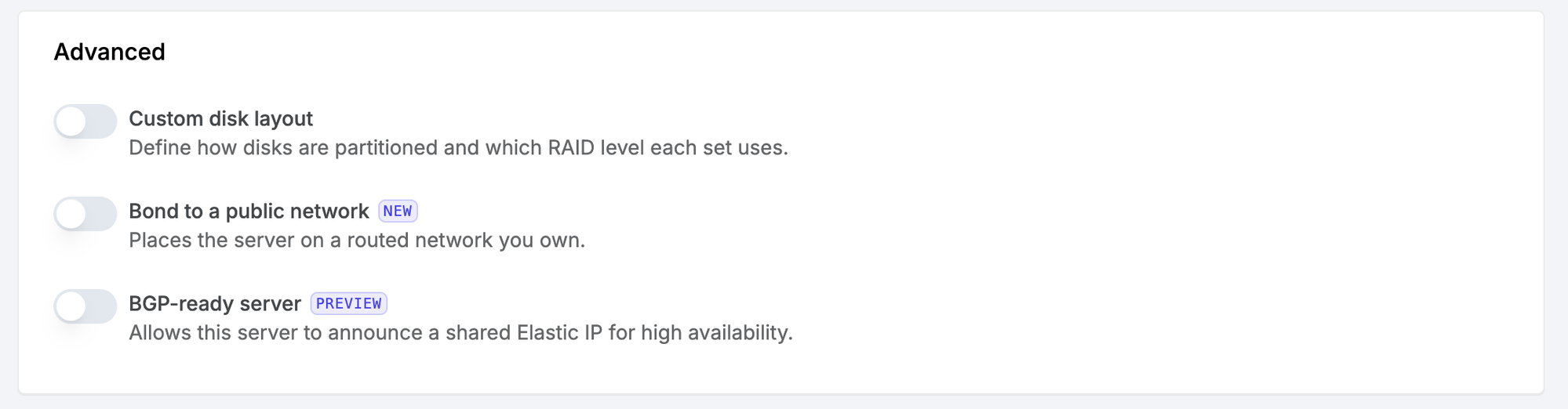 Deploy the server in the **same site** as the Elastic IP you plan to announce.
## Allocate a BGP Elastic IP
In the sidebar, go to **Network → IP addresses** and select the **Elastic IPs** tab.
Click the **Create Elastic IP** button and choose **BGP** as the routing type.
Choose the **site** where the address will live.
The site is permanent: only servers in this site will ever be able to announce the address, so pick the site where your servers are.
The address is allocated immediately. It exists but is **not reachable yet** — nothing announces it until you add an announcing server and configure it.
## Add announcing servers
An **announcing server** runs a BGP session and announces the address. Manage them from the Elastic IP detail page.
From the Elastic IPs list, click the BGP-mode address.
In the **Announcing servers** section, pick a server from the **Select server...** dropdown, then click **Add server**. Only [BGP-ready servers](#deploy-a-bgp-ready-server) in the address's site are offered.
The session starts as **pending** and becomes **active** once the network configuration is applied, usually within a few seconds.
Each session has a **peer address** — the BGP neighbor your server peers with. On Latitude's network this is your server's gateway. You need it for the BIRD `neighbor` (or MetalLB `peerAddress`) in the next section.
Get it in any of these ways:
* **Dashboard** — the **Announcing servers** table shows a **Peer address** column for each server.
* **API** — the session's `peer_address` field, returned by [List BGP sessions](https://www.latitude.sh/docs/api-reference/list-elastic-ip-bgp-sessions). It is `null` until the session becomes active.
* **On the server** — it is your default gateway:
```bash theme={null}
ip -4 route show default
# default via dev eno1 ...
```
Removing an announcing server withdraws its announcement immediately. If you remove the only one, the address stops being reachable.
## Configure your server
Adding an announcing server prepares the network side. Your server still has to (1) hold the address locally and (2) announce it over BGP. The examples below use **BIRD** on Ubuntu; adapt the paths to your distribution.
Replace the placeholders throughout:
* `` — the address you allocated.
* `` — the session's peer address (your server's gateway). Find it in the dashboard's **Announcing servers** table, the session's `peer_address` field from [List BGP sessions](https://www.latitude.sh/docs/api-reference/list-elastic-ip-bgp-sessions), or with `ip -4 route show default`.
* `` — your server's primary IPv4 address.
### 1. Bind the address to the loopback interface
The server must own `` locally, on `lo`, so BIRD has a route to announce. Add it in a dedicated netplan file so it survives reboots:
```yaml /etc/netplan/99-elastic-ip.yaml theme={null}
network:
version: 2
ethernets:
lo:
addresses:
- /32
```
Set restrictive permissions and apply it:
```bash theme={null}
sudo chmod 600 /etc/netplan/99-elastic-ip.yaml
sudo netplan apply
sudo networkctl reconfigure lo
```
`netplan apply` persists the address for the next boot but does **not** add it to the running loopback interface. Run `networkctl reconfigure lo` to add it now, then confirm with `ip addr show lo`.
Use a **separate** file (`99-elastic-ip.yaml`), not `50-cloud-init.yaml`, which can be regenerated and would drop your change.
### 2. Install and configure BIRD
```bash theme={null}
sudo apt update && sudo apt install -y bird2
```
BIRD announces the address to your peer over BGP. It imports nothing and exports only the one `/32`:
```conf /etc/bird/bird.conf theme={null}
router id ;
protocol device {
}
# Picks up /32 from the loopback interface so it can be announced.
# The ipv4 channel is required — without it BIRD imports no routes and nothing is announced.
protocol direct {
ipv4;
interface "lo";
}
protocol bgp latitude {
local as 65512;
neighbor as 65512;
# Fail over quickly if this server becomes unresponsive.
hold time 9;
keepalive time 3;
ipv4 {
import none;
export filter {
if net = /32 then accept;
reject;
};
};
}
```
Reload BIRD to apply the configuration:
```bash theme={null}
sudo birdc configure
```
### 3. Verify the announcement
```bash theme={null}
sudo birdc show protocols all latitude
```
The session should be **Established** and export exactly **one** route:
```
Routes: 0 imported, 1 exported
BGP state: Established
```
`1 exported` confirms your server is announcing the address and the network accepted it. Repeat these steps on every announcing server you added.
## Recommended reliability practices
BGP delivers traffic to whichever servers are announcing the address. Two additions make failover fast and correct.
### Tune the BGP timers
The `hold time 9; keepalive time 3;` lines in the configuration above are the single most important reliability setting. With BIRD's defaults, a server that freezes with its link still up can keep attracting traffic for **two to three minutes** before the network gives up on it. With these timers, that drops to about **five seconds**. The lower value from either end wins, so setting it on your side is enough.
### Add an application liveness watchdog
BGP only checks that the routing session is alive — not that your application is serving. If your application stops while BIRD keeps announcing, that server keeps receiving traffic it can no longer handle.
Run a watchdog that checks your application and **removes `` from `lo`** when it stops responding:
```bash theme={null}
sudo ip addr del /32 dev lo
```
Because the address is gone from `lo`, the `direct` protocol withdraws it and the network stops sending traffic to this server — while the BGP session itself stays up, so nothing churns. Restore the address when the application recovers and the announcement returns automatically.
## API reference
You can manage BGP-mode Elastic IPs and their announcing servers programmatically. See the [Elastic IPs API reference](https://www.latitude.sh/docs/api-reference/list-elastic-ips) for available endpoints.
Deploy the server in the **same site** as the Elastic IP you plan to announce.
## Allocate a BGP Elastic IP
In the sidebar, go to **Network → IP addresses** and select the **Elastic IPs** tab.
Click the **Create Elastic IP** button and choose **BGP** as the routing type.
Choose the **site** where the address will live.
The site is permanent: only servers in this site will ever be able to announce the address, so pick the site where your servers are.
The address is allocated immediately. It exists but is **not reachable yet** — nothing announces it until you add an announcing server and configure it.
## Add announcing servers
An **announcing server** runs a BGP session and announces the address. Manage them from the Elastic IP detail page.
From the Elastic IPs list, click the BGP-mode address.
In the **Announcing servers** section, pick a server from the **Select server...** dropdown, then click **Add server**. Only [BGP-ready servers](#deploy-a-bgp-ready-server) in the address's site are offered.
The session starts as **pending** and becomes **active** once the network configuration is applied, usually within a few seconds.
Each session has a **peer address** — the BGP neighbor your server peers with. On Latitude's network this is your server's gateway. You need it for the BIRD `neighbor` (or MetalLB `peerAddress`) in the next section.
Get it in any of these ways:
* **Dashboard** — the **Announcing servers** table shows a **Peer address** column for each server.
* **API** — the session's `peer_address` field, returned by [List BGP sessions](https://www.latitude.sh/docs/api-reference/list-elastic-ip-bgp-sessions). It is `null` until the session becomes active.
* **On the server** — it is your default gateway:
```bash theme={null}
ip -4 route show default
# default via dev eno1 ...
```
Removing an announcing server withdraws its announcement immediately. If you remove the only one, the address stops being reachable.
## Configure your server
Adding an announcing server prepares the network side. Your server still has to (1) hold the address locally and (2) announce it over BGP. The examples below use **BIRD** on Ubuntu; adapt the paths to your distribution.
Replace the placeholders throughout:
* `` — the address you allocated.
* `` — the session's peer address (your server's gateway). Find it in the dashboard's **Announcing servers** table, the session's `peer_address` field from [List BGP sessions](https://www.latitude.sh/docs/api-reference/list-elastic-ip-bgp-sessions), or with `ip -4 route show default`.
* `` — your server's primary IPv4 address.
### 1. Bind the address to the loopback interface
The server must own `` locally, on `lo`, so BIRD has a route to announce. Add it in a dedicated netplan file so it survives reboots:
```yaml /etc/netplan/99-elastic-ip.yaml theme={null}
network:
version: 2
ethernets:
lo:
addresses:
- /32
```
Set restrictive permissions and apply it:
```bash theme={null}
sudo chmod 600 /etc/netplan/99-elastic-ip.yaml
sudo netplan apply
sudo networkctl reconfigure lo
```
`netplan apply` persists the address for the next boot but does **not** add it to the running loopback interface. Run `networkctl reconfigure lo` to add it now, then confirm with `ip addr show lo`.
Use a **separate** file (`99-elastic-ip.yaml`), not `50-cloud-init.yaml`, which can be regenerated and would drop your change.
### 2. Install and configure BIRD
```bash theme={null}
sudo apt update && sudo apt install -y bird2
```
BIRD announces the address to your peer over BGP. It imports nothing and exports only the one `/32`:
```conf /etc/bird/bird.conf theme={null}
router id ;
protocol device {
}
# Picks up /32 from the loopback interface so it can be announced.
# The ipv4 channel is required — without it BIRD imports no routes and nothing is announced.
protocol direct {
ipv4;
interface "lo";
}
protocol bgp latitude {
local as 65512;
neighbor as 65512;
# Fail over quickly if this server becomes unresponsive.
hold time 9;
keepalive time 3;
ipv4 {
import none;
export filter {
if net = /32 then accept;
reject;
};
};
}
```
Reload BIRD to apply the configuration:
```bash theme={null}
sudo birdc configure
```
### 3. Verify the announcement
```bash theme={null}
sudo birdc show protocols all latitude
```
The session should be **Established** and export exactly **one** route:
```
Routes: 0 imported, 1 exported
BGP state: Established
```
`1 exported` confirms your server is announcing the address and the network accepted it. Repeat these steps on every announcing server you added.
## Recommended reliability practices
BGP delivers traffic to whichever servers are announcing the address. Two additions make failover fast and correct.
### Tune the BGP timers
The `hold time 9; keepalive time 3;` lines in the configuration above are the single most important reliability setting. With BIRD's defaults, a server that freezes with its link still up can keep attracting traffic for **two to three minutes** before the network gives up on it. With these timers, that drops to about **five seconds**. The lower value from either end wins, so setting it on your side is enough.
### Add an application liveness watchdog
BGP only checks that the routing session is alive — not that your application is serving. If your application stops while BIRD keeps announcing, that server keeps receiving traffic it can no longer handle.
Run a watchdog that checks your application and **removes `` from `lo`** when it stops responding:
```bash theme={null}
sudo ip addr del /32 dev lo
```
Because the address is gone from `lo`, the `direct` protocol withdraws it and the network stops sending traffic to this server — while the BGP session itself stays up, so nothing churns. Restore the address when the application recovers and the announcement returns automatically.
## API reference
You can manage BGP-mode Elastic IPs and their announcing servers programmatically. See the [Elastic IPs API reference](https://www.latitude.sh/docs/api-reference/list-elastic-ips) for available endpoints.