> ## Documentation Index
> Fetch the complete documentation index at: https://www.latitude.sh/docs/llms.txt
> Use this file to discover all available pages before exploring further.
# Terraform Cloud best practices
> Collaborate on infrastructure as code with team workflows and security guardrails
When working with multiple people, managing your infrastructure with Terraform becomes challenging. When that happens, adding visibility and guardrails to your Terraform plans becomes important.
[Terraform Cloud](https://app.terraform.io) is a great option for collaborating with other developers. Some of its most useful features are the ability to run plans remotely, shared state files, and add security features to avoid human error messing up your Latitude.sh infrastructure.
This is an opinionated setup for Latitude.sh on Terraform Cloud based on best practices we created when using Terraform with Latitude.sh ourselves.
## Set up
After signing up for Terraform Cloud, set up your workspace. We recommend using a Git repository. We use *GitHub*, but Terraform Cloud also allows *GitLab*, *Bitbucket* and *Azure DevOps* to be connected.
Create one directory on your git repo and one workspace in Terraform Cloud for each of your Latitude.sh projects. So, if like us, you have a *Development* and a \_Production \_ project on your Latitude.sh account that you want to manage with Terraform, this is what the root of your repo should look like.
 Now go back to the workspace setup in Terraform Cloud. In the Configure settings section, click on **Advanced options**. In the **Terraform Working Directory** input, type the directory name you set up previously.
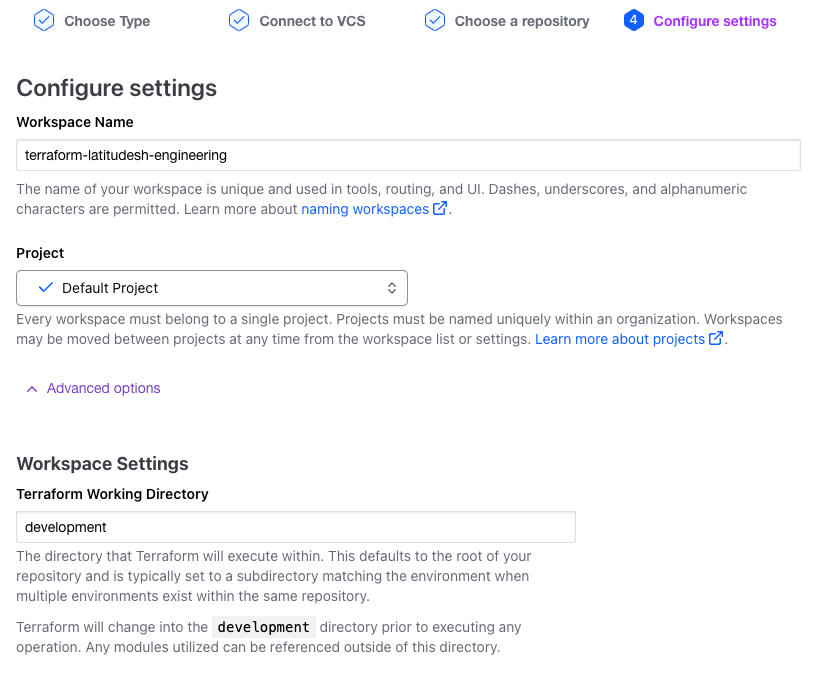 In the **Apply method** select, choose **Auto Apply** for environments you don't care about breaking, such as *development*, and **Manual apply** for critical environments, like *production*.
We strongly recommend leaving **Automatic speculative plans** selected.
This is a good setup to allow your team to move quickly when developing while keeping critical environments less error-prone.
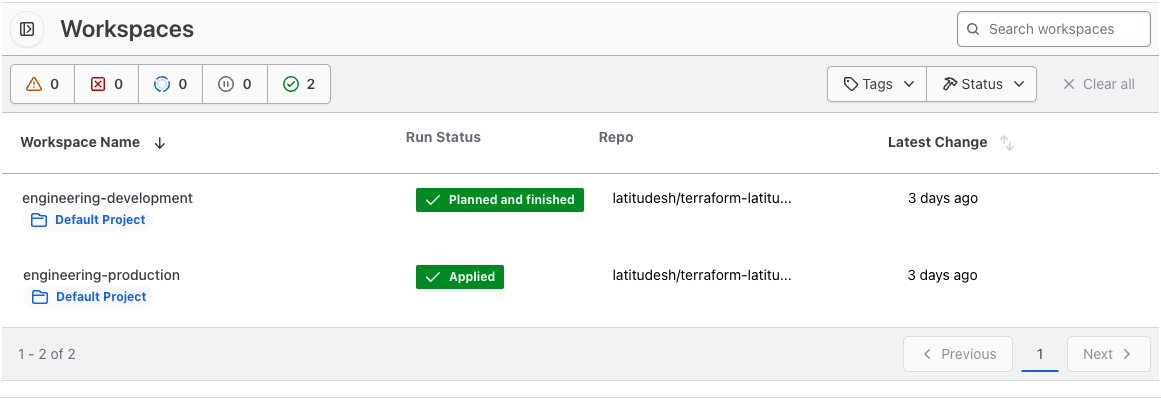
Here's what your workspace should look like now
In the **Apply method** select, choose **Auto Apply** for environments you don't care about breaking, such as *development*, and **Manual apply** for critical environments, like *production*.
We strongly recommend leaving **Automatic speculative plans** selected.
This is a good setup to allow your team to move quickly when developing while keeping critical environments less error-prone.
Here's what your workspace should look like now
 ## Variables
Select a workspace and go to **Variables**. Add a new sensitive variable named `LATITUDESH_AUTH_TOKEN` with your Latitude.sh [API Key](https://www.latitude.sh/docs/api-reference/get-api-keys) as value.
## Variables
Select a workspace and go to **Variables**. Add a new sensitive variable named `LATITUDESH_AUTH_TOKEN` with your Latitude.sh [API Key](https://www.latitude.sh/docs/api-reference/get-api-keys) as value.
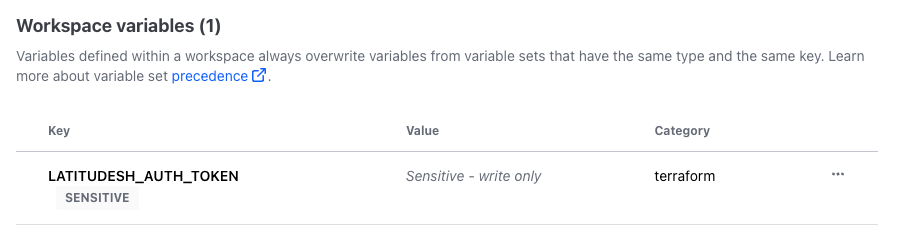 Do this for all workspaces and create one API key for each.
## Additional recommendations
With this setup, whenever you push changes to the `main` branch
* Terraform Cloud will plan and apply your plan for the *development* workspace.
* Terraform Cloud will plan and wait for confirmation to apply your plan for the *production* workspace. You have to go to Terraform Cloud's dashboard and approve the changes.
Because Terraform has the potential for highly destructive actions like reimaging an instance or completely destroying it, it's important to harden your git repo. Here's what we recommend:
1. Restrict repository access to developers working on your infrastructure.
2. Create **branch protection rules**, the most important being protecting your `main` branch.
Do this for all workspaces and create one API key for each.
## Additional recommendations
With this setup, whenever you push changes to the `main` branch
* Terraform Cloud will plan and apply your plan for the *development* workspace.
* Terraform Cloud will plan and wait for confirmation to apply your plan for the *production* workspace. You have to go to Terraform Cloud's dashboard and approve the changes.
Because Terraform has the potential for highly destructive actions like reimaging an instance or completely destroying it, it's important to harden your git repo. Here's what we recommend:
1. Restrict repository access to developers working on your infrastructure.
2. Create **branch protection rules**, the most important being protecting your `main` branch.