> ## Documentation Index
> Fetch the complete documentation index at: https://www.latitude.sh/docs/llms.txt
> Use this file to discover all available pages before exploring further.
# Setting up persistent storage for Kubernetes with Longhorn
> Configure storage to retain application data on your K8s cluster
[Longhorn](https://longhorn.io/docs/1.7.2/what-is-longhorn/) is a free, open-source distributed block storage system for Kubernetes that keeps things lightweight while handling replication and persistence for your workloads. If you've got a K8s cluster deployed on Latitude.sh and need reliable container storage, this guide will get you there.
## Prerequisites
* A [Kubernetes cluster](/guides/kubernetes-on-bare-metal) with at least 3 nodes
* [kubectl CLI](https://kubernetes.io/docs/tasks/tools/) installed on your local workstation
* [Helm](https://helm.sh/docs/intro/install/) installed (for installing Longhorn)
## Step 1: Prepare your cluster
Run `lsblk` on each node to find available disks and partitions to dedicate to Longhorn.
Label your nodes to control which ones will be used for Longhorn storage:
```shell theme={null}
kubectl label nodes longhorn=true
```
## Step 2: Install Longhorn
Longhorn can be installed on a K8s cluster in [several ways](https://longhorn.io/docs/1.7.2/deploy/install/). In this guide, we'll go with [Helm](https://longhorn.io/docs/1.7.2/deploy/install/install-with-helm/).
Add the Longhorn Helm repository:
```shell theme={null}
helm repo add longhorn https://charts.longhorn.io
helm repo update
```
Run this command to install Longhorn:
```shell theme={null}
helm install longhorn longhorn/longhorn --namespace longhorn-system --create-namespace
```
Verify the installation:
```shell theme={null}
kubectl -n longhorn-system get pod
```
All pods should be running without errors.
## Step 3: Access the Longhorn UI
Run this command to check if the Longhorn services are up:
```shell theme={null}
kubectl -n longhorn-system get svc
```
The output should be something like this:
 Set up port forwarding to the frontend service:
```shell theme={null}
kubectl port-forward services/longhorn-frontend 8080:http -n longhorn-system
```
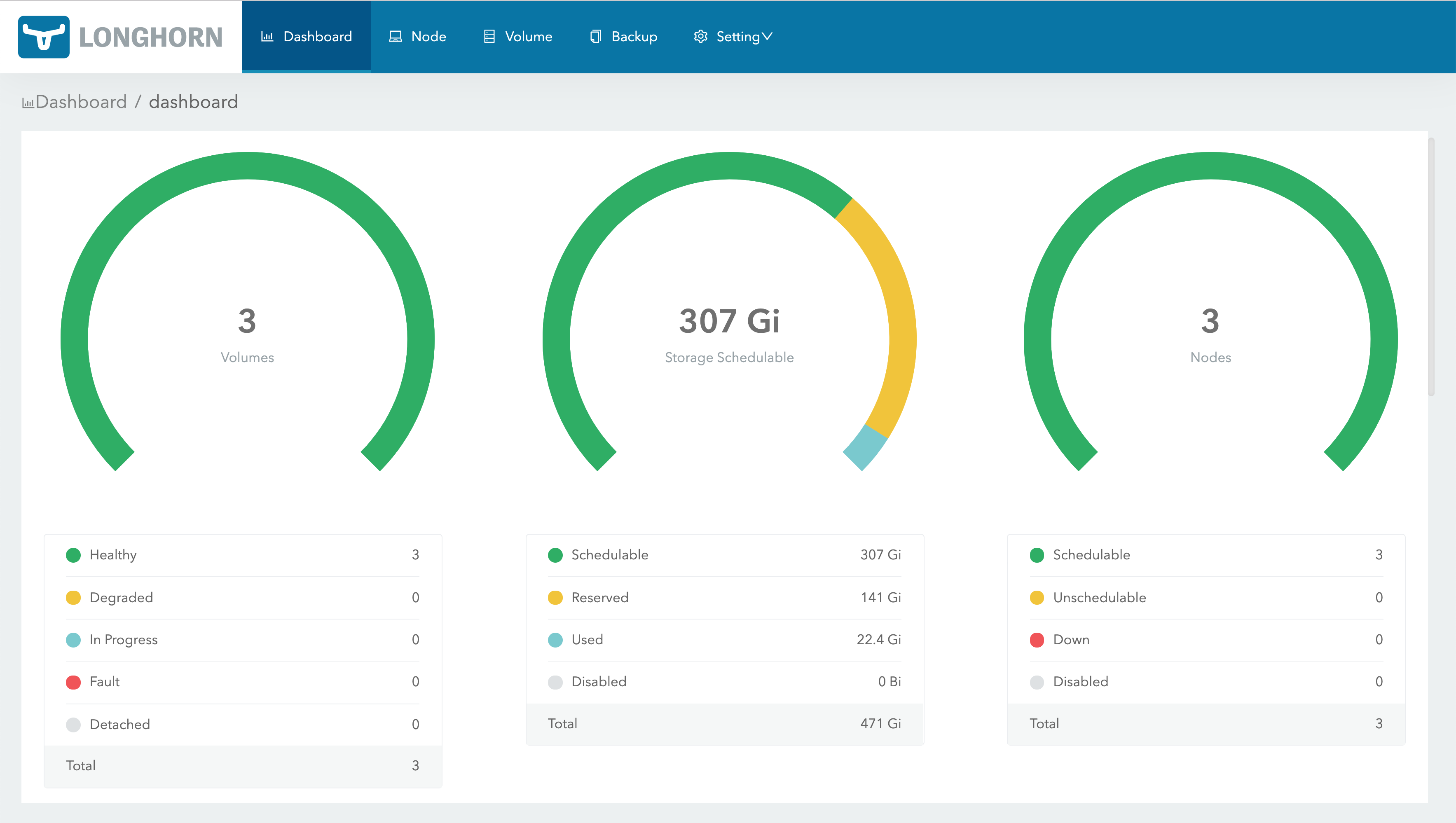
Navigate to `http://localhost:8080` in your browser to access the Longhorn UI. You'll be taken to this dashboard:
Set up port forwarding to the frontend service:
```shell theme={null}
kubectl port-forward services/longhorn-frontend 8080:http -n longhorn-system
```
Navigate to `http://localhost:8080` in your browser to access the Longhorn UI. You'll be taken to this dashboard:
 ## Step 4: Configure storage
In the Longhorn UI, navigate to **Node** and check if your disks are detected automatically.
## Step 4: Configure storage
In the Longhorn UI, navigate to **Node** and check if your disks are detected automatically.
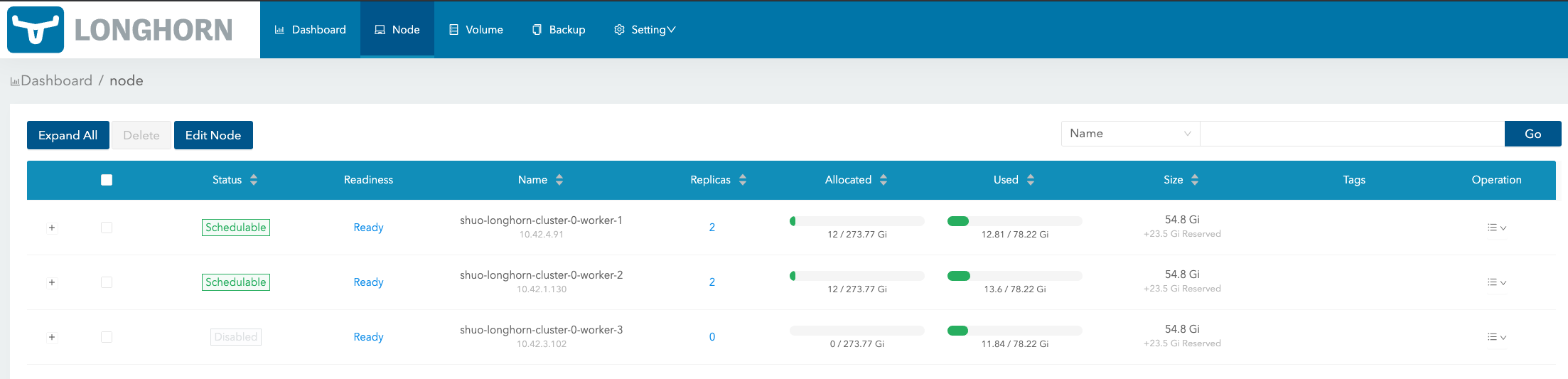 Define disk usage limits and scheduling. Make sure your nodes have enough space to handle the intended workload.
## Step 5: Create a StorageClass
Create a StorageClass manifest named `longhorn-storageclass.yaml`:
```yaml theme={null}
apiVersion: storage.k8s.io/v1
kind: StorageClass
metadata:
name: longhorn
provisioner: driver.longhorn.io
allowVolumeExpansion: true
reclaimPolicy: Delete
volumeBindingMode: Immediate
```
Apply the StorageClass:
```shell theme={null}
kubectl apply -f longhorn-storageclass.yaml
```
Set the StorageClass as default:
```shell theme={null}
kubectl patch storageclass longhorn -p '{"metadata": {"annotations":{"storageclass.kubernetes.io/is-default-class":"true"}}}'
```
## Step 6: Create a PersistentVolumeClaim (PVC)
Create a PersistentVolumeClaim YAML file named `longhorn-pvc.yaml`:
```yaml theme={null}
apiVersion: v1
kind: PersistentVolumeClaim
metadata:
name: longhorn-pvc
spec:
accessModes:
- ReadWriteOnce
storageClassName: longhorn
resources:
requests:
storage: 5Gi
```
Apply the PVC:
```shell theme={null}
kubectl apply -f longhorn-pvc.yaml
```
Verify the PVC:
```shell theme={null}
kubectl get pvc
```
Make sure the status shows **Bound** to confirm it worked.
## Step 7: Use the PVC in a Pod
Create a Pod that Uses the PVC, save this as `longhorn-pod.yaml`:
```yaml theme={null}
apiVersion: v1
kind: Pod
metadata:
name: longhorn-test-pod
spec:
containers:
- name: longhorn-test
image: nginx
volumeMounts:
- mountPath: "/usr/share/nginx/html"
name: longhorn-storage
volumes:
- name: longhorn-storage
persistentVolumeClaim:
claimName: longhorn-pvc
```
Deploy the Pod:
```shell theme={null}
kubectl apply -f longhorn-pod.yaml
```
Check Pod status:
```shell theme={null}
kubectl get pods
```
The Pod should be running without issues. You can check if the data persists by inspecting the mounted directory.
## Troubleshooting
* If Longhorn nodes show as unschedulable, check disk space and ensure no taints are blocking pods.
* For performance tuning, you can adjust the number of replicas for each volume in the Longhorn UI under **Settings > Default Settings**.
* If using firewalls, ensure ports 9500-9600 are open for communication between Longhorn components.
## That's it!
You've got Longhorn running and ready to handle your persistent storage needs.
Define disk usage limits and scheduling. Make sure your nodes have enough space to handle the intended workload.
## Step 5: Create a StorageClass
Create a StorageClass manifest named `longhorn-storageclass.yaml`:
```yaml theme={null}
apiVersion: storage.k8s.io/v1
kind: StorageClass
metadata:
name: longhorn
provisioner: driver.longhorn.io
allowVolumeExpansion: true
reclaimPolicy: Delete
volumeBindingMode: Immediate
```
Apply the StorageClass:
```shell theme={null}
kubectl apply -f longhorn-storageclass.yaml
```
Set the StorageClass as default:
```shell theme={null}
kubectl patch storageclass longhorn -p '{"metadata": {"annotations":{"storageclass.kubernetes.io/is-default-class":"true"}}}'
```
## Step 6: Create a PersistentVolumeClaim (PVC)
Create a PersistentVolumeClaim YAML file named `longhorn-pvc.yaml`:
```yaml theme={null}
apiVersion: v1
kind: PersistentVolumeClaim
metadata:
name: longhorn-pvc
spec:
accessModes:
- ReadWriteOnce
storageClassName: longhorn
resources:
requests:
storage: 5Gi
```
Apply the PVC:
```shell theme={null}
kubectl apply -f longhorn-pvc.yaml
```
Verify the PVC:
```shell theme={null}
kubectl get pvc
```
Make sure the status shows **Bound** to confirm it worked.
## Step 7: Use the PVC in a Pod
Create a Pod that Uses the PVC, save this as `longhorn-pod.yaml`:
```yaml theme={null}
apiVersion: v1
kind: Pod
metadata:
name: longhorn-test-pod
spec:
containers:
- name: longhorn-test
image: nginx
volumeMounts:
- mountPath: "/usr/share/nginx/html"
name: longhorn-storage
volumes:
- name: longhorn-storage
persistentVolumeClaim:
claimName: longhorn-pvc
```
Deploy the Pod:
```shell theme={null}
kubectl apply -f longhorn-pod.yaml
```
Check Pod status:
```shell theme={null}
kubectl get pods
```
The Pod should be running without issues. You can check if the data persists by inspecting the mounted directory.
## Troubleshooting
* If Longhorn nodes show as unschedulable, check disk space and ensure no taints are blocking pods.
* For performance tuning, you can adjust the number of replicas for each volume in the Longhorn UI under **Settings > Default Settings**.
* If using firewalls, ensure ports 9500-9600 are open for communication between Longhorn components.
## That's it!
You've got Longhorn running and ready to handle your persistent storage needs.