> ## Documentation Index
> Fetch the complete documentation index at: https://www.latitude.sh/docs/llms.txt
> Use this file to discover all available pages before exploring further.
# Invoices
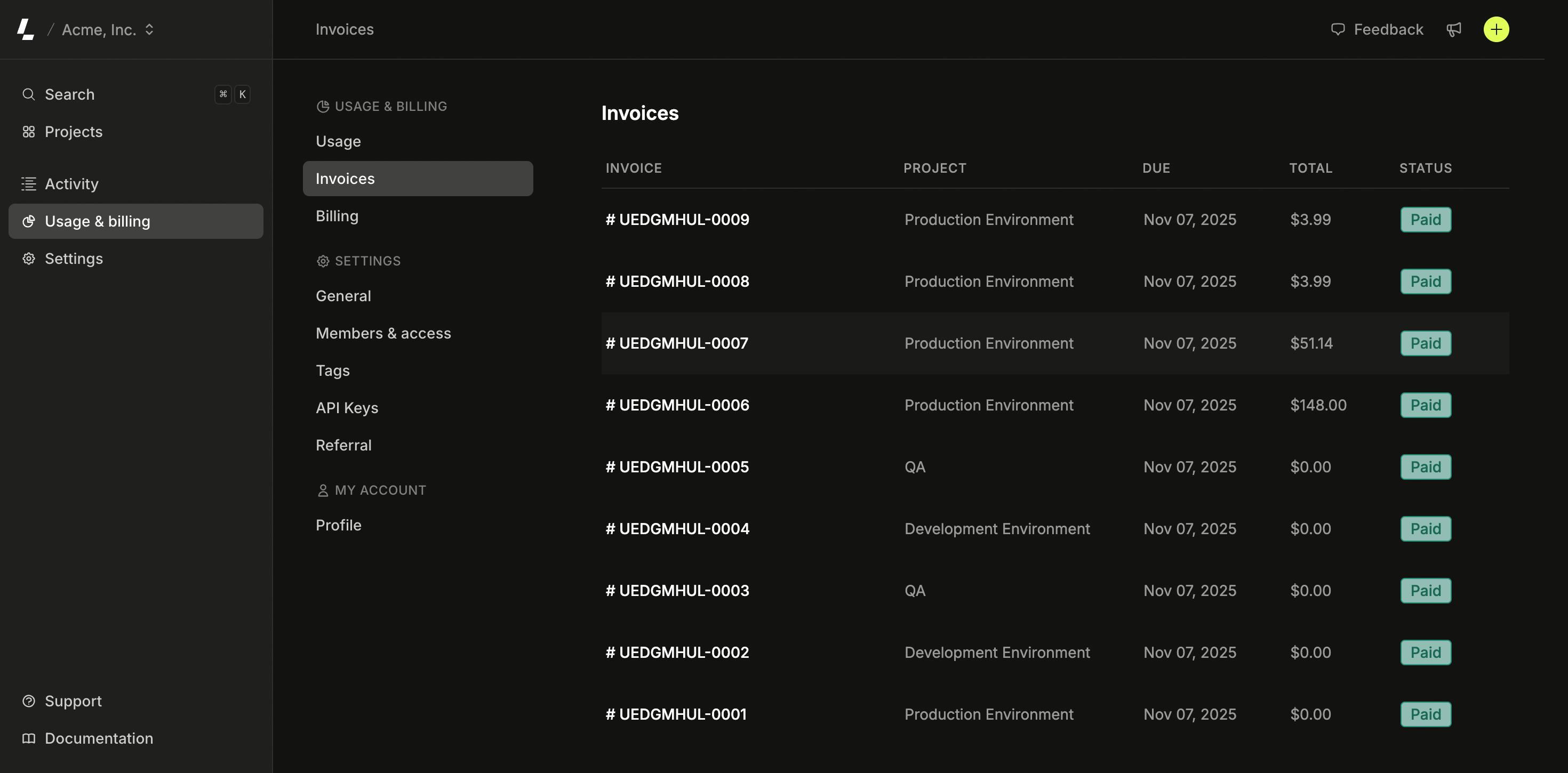 ## Remaining and Unused time
Your invoices might contain line items that look like this
## Remaining and Unused time
Your invoices might contain line items that look like this
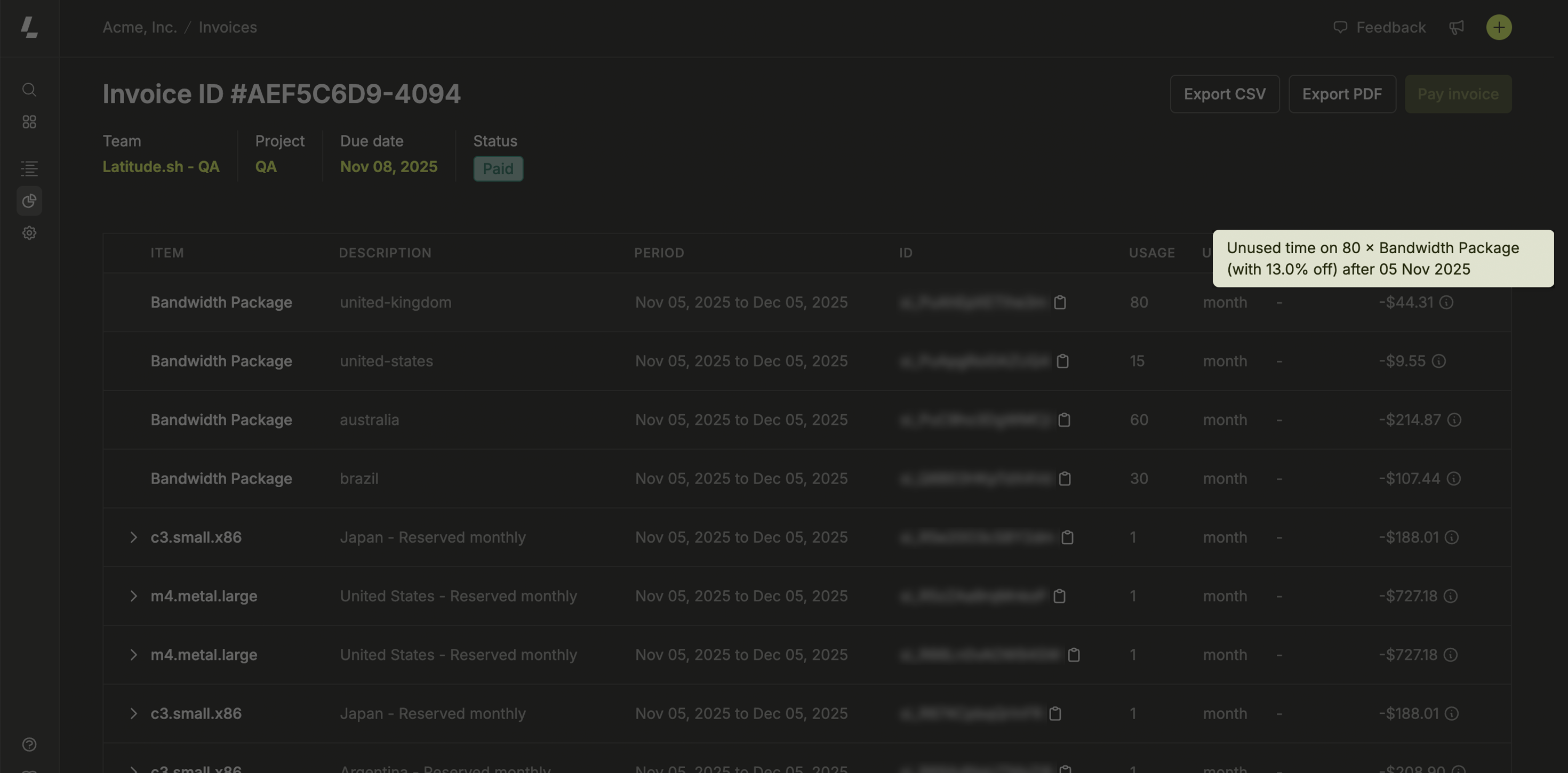 The *Remaining* and *Unused time* line-items are Prorations. They indicate that a service was either added or removed from your Project during the billing cycle.
* When you remove a service from your Project, the *Unused time* item adds a credit to your next invoice.
* When you add a server to your Project, the *Remaining time* item adds a debit to your invoice referring to the date you added the service up until the service renewal.
* If you add and remove the same service during the same billing cycle, you will only be charged for the time you actually used it.
## Invoices
* Each [Project](/docs/projects) is a different subscription. You will receive a separate invoice for each of your Projects.
* Payment methods are managed per Team. If you want to use a different payment method for each Project, reach out to support.
### Detailed invoices
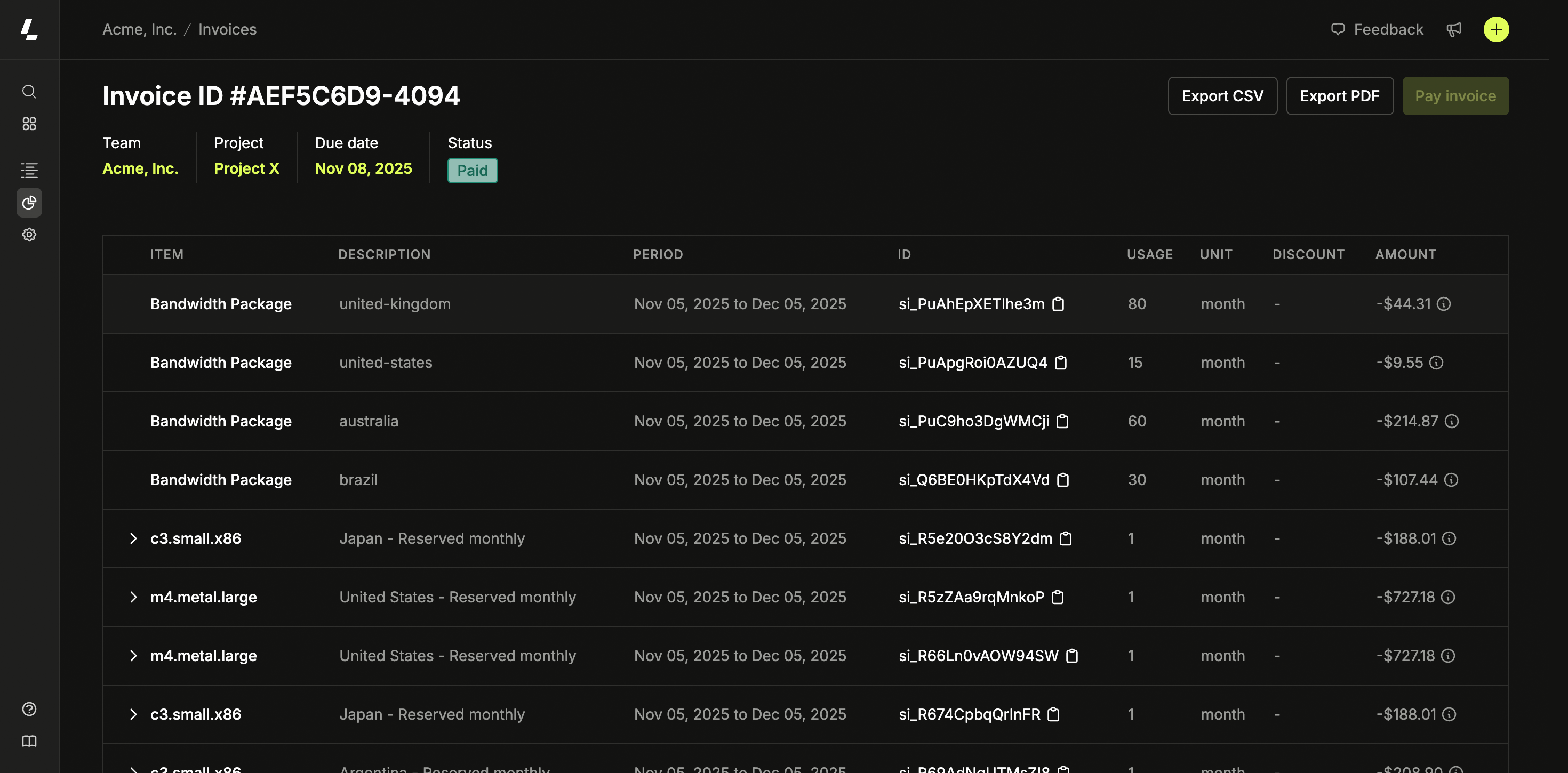
To view details of an invoice, go to the [dashboard](https://www.latitude.sh/dashboard/), navigate to **Usage & billing** > **Invoices**, and click **View**.
Here is an example of what a detailed invoice might look like.
The *Remaining* and *Unused time* line-items are Prorations. They indicate that a service was either added or removed from your Project during the billing cycle.
* When you remove a service from your Project, the *Unused time* item adds a credit to your next invoice.
* When you add a server to your Project, the *Remaining time* item adds a debit to your invoice referring to the date you added the service up until the service renewal.
* If you add and remove the same service during the same billing cycle, you will only be charged for the time you actually used it.
## Invoices
* Each [Project](/docs/projects) is a different subscription. You will receive a separate invoice for each of your Projects.
* Payment methods are managed per Team. If you want to use a different payment method for each Project, reach out to support.
### Detailed invoices
To view details of an invoice, go to the [dashboard](https://www.latitude.sh/dashboard/), navigate to **Usage & billing** > **Invoices**, and click **View**.
Here is an example of what a detailed invoice might look like.
 #### Line item discounts
When discounts are applied to specific line items, they are displayed both in the dashboard and PDF exports:
* **Dashboard view**: Discounts appear in a dedicated "Discount" column showing the discount amount with a tooltip containing the discount name and percentage (if applicable)
* **PDF export**: Discount information is shown below each applicable line item, including the discount name and percentage off when available
Line item discounts provide granular visibility into how discounts are applied to individual services, separate from any total invoice discounts that may appear in the invoice summary.
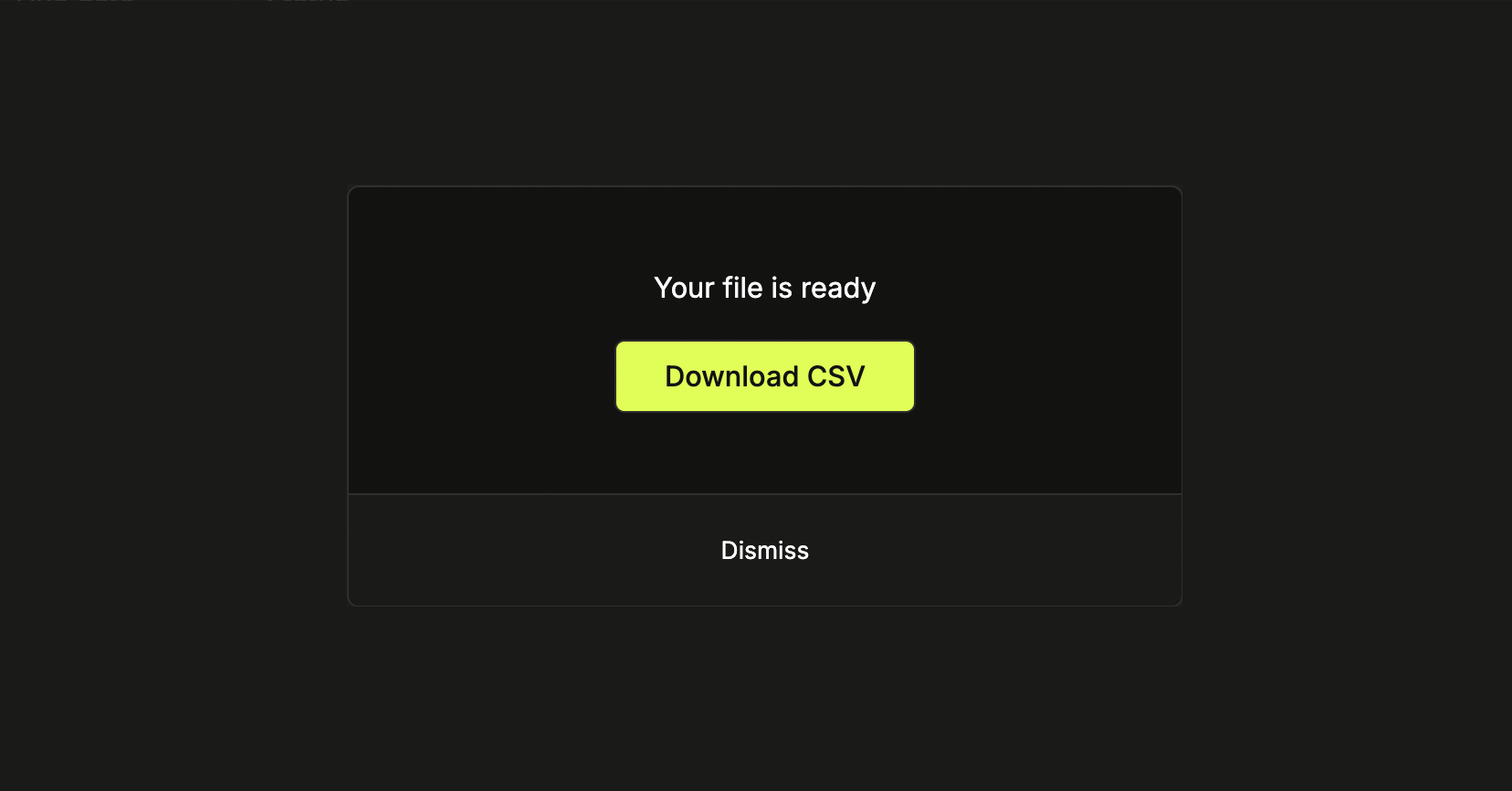
The invoice can be exported in PDF and CSV. Unlike the invoice received by email, these files make it much easier to track cloud resources at their cost.
To generate the files, choose the format in the upper right corner.
#### Line item discounts
When discounts are applied to specific line items, they are displayed both in the dashboard and PDF exports:
* **Dashboard view**: Discounts appear in a dedicated "Discount" column showing the discount amount with a tooltip containing the discount name and percentage (if applicable)
* **PDF export**: Discount information is shown below each applicable line item, including the discount name and percentage off when available
Line item discounts provide granular visibility into how discounts are applied to individual services, separate from any total invoice discounts that may appear in the invoice summary.
The invoice can be exported in PDF and CSV. Unlike the invoice received by email, these files make it much easier to track cloud resources at their cost.
To generate the files, choose the format in the upper right corner.
 Detailed invoices are useful when you want to see which cloud resources are associated with your bill. It has more information than the PDF invoice that is sent to your email as it shows a description for each line, and, in the case of servers, allows you to expand the line item and see which server is associated with it.
Each line item also retrieves a unique identifier that you can use to track costs on your own systems.
Detailed invoices are useful when you want to see which cloud resources are associated with your bill. It has more information than the PDF invoice that is sent to your email as it shows a description for each line, and, in the case of servers, allows you to expand the line item and see which server is associated with it.
Each line item also retrieves a unique identifier that you can use to track costs on your own systems.